Icarus User Guide - Web Analytics Plugins
This article covers web analytics plugins supported by Icarus.
Baidu Statistics
Installation Guide
Log into Baidu Statistics. Click the “Add new website” button on the “Admin > Site list” page and fill in the site information such as name and homepage URL. Click “OK” to complete site creation.
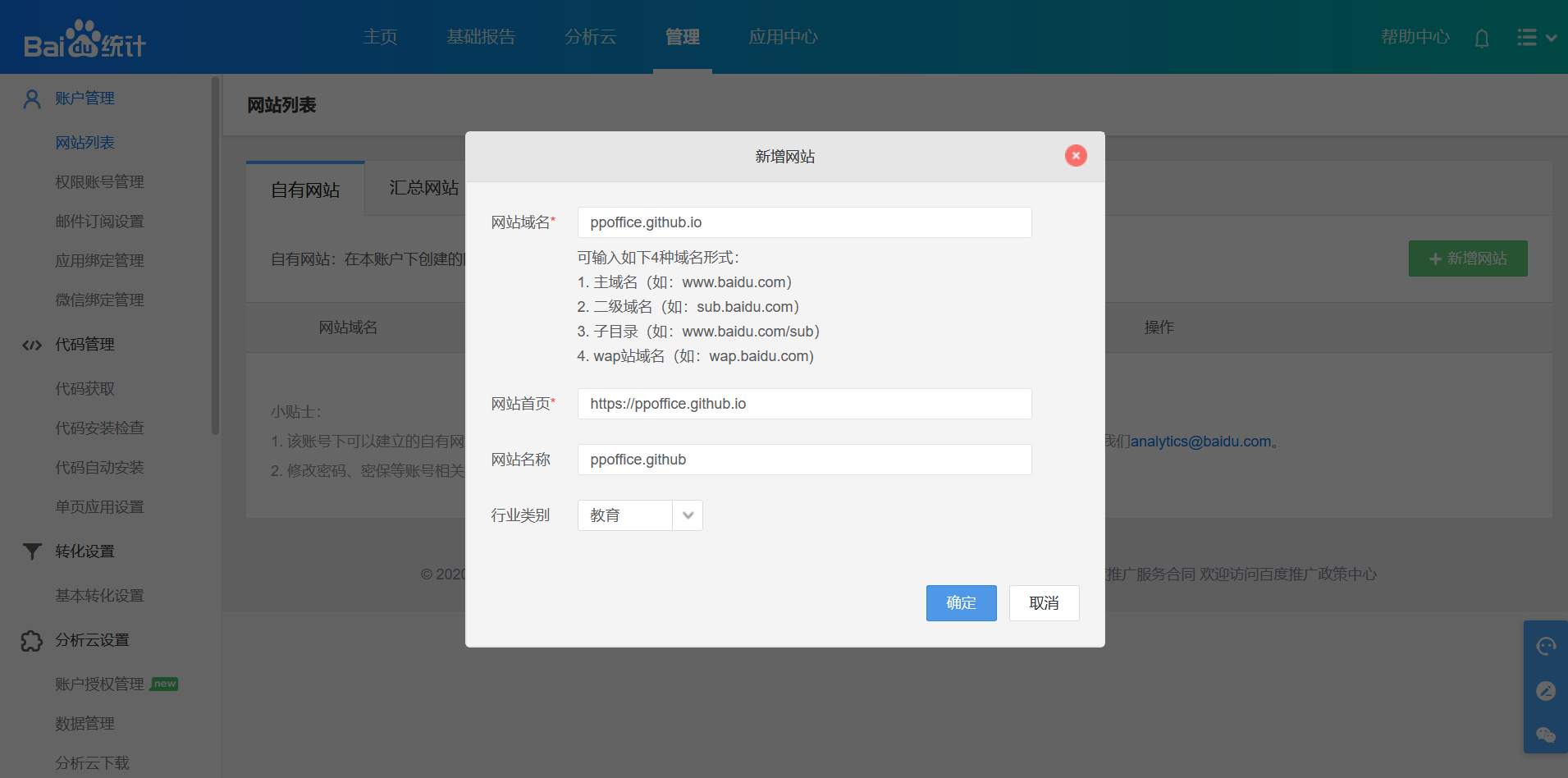
On the next page, find the ID behind
hm.baidu.com/hm.js?and set it as the value ofplugins>baidu_analytics>tracking_idin the theme configurations.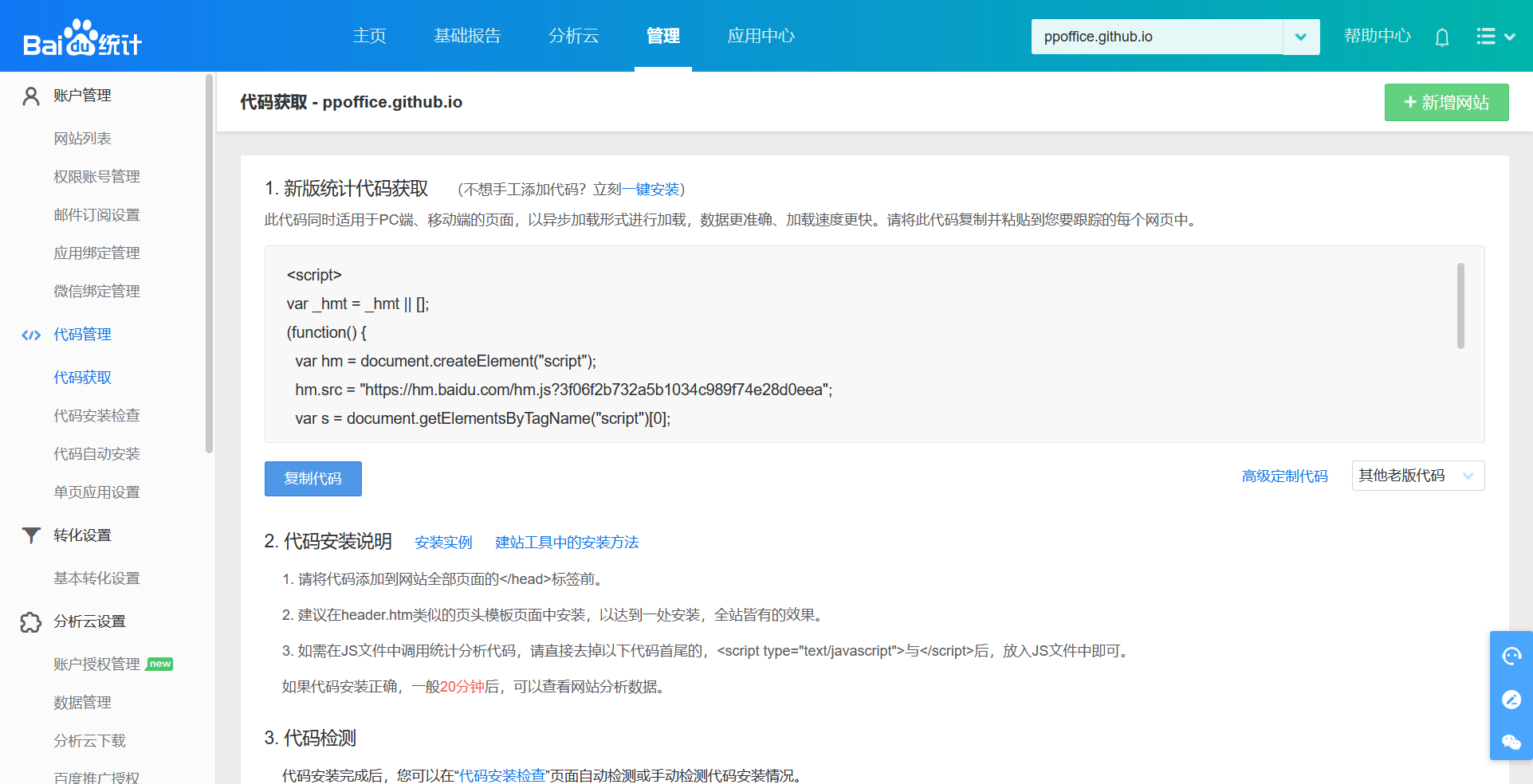
For example, the following Baidu Statistics code:
Baidu Statistics code 1
2
3
4
5
6
7
8
9<script>
var _hmt = _hmt || [];
(function() {
var hm = document.createElement("script");
hm.src = "https://hm.baidu.com/hm.js?3f06f2b732a5b1034c989f74e28d0eea";
var s = document.getElementsByTagName("script")[0];
s.parentNode.insertBefore(hm, s);
})();
</script>maps to the following theme configuration:
_config.icarus.yml 1
2
3plugins:
baidu_analytics:
tracking_id: 3f06f2b732a5b1034c989f74e28d0eea
Bing Webmaster Tools
Installation Guide
Log into Bing - Webmaster Tools. Then, choose “Add your site manually” and enter the URL to your site. Click “Add” button to continue.

In the “Add & verify site” panel, select “HTML Meta Tag” method. Copy value of the
contentattribute in the HTML meta tag to theplugins>bing_webmaster>tracking_idin the theme configurations.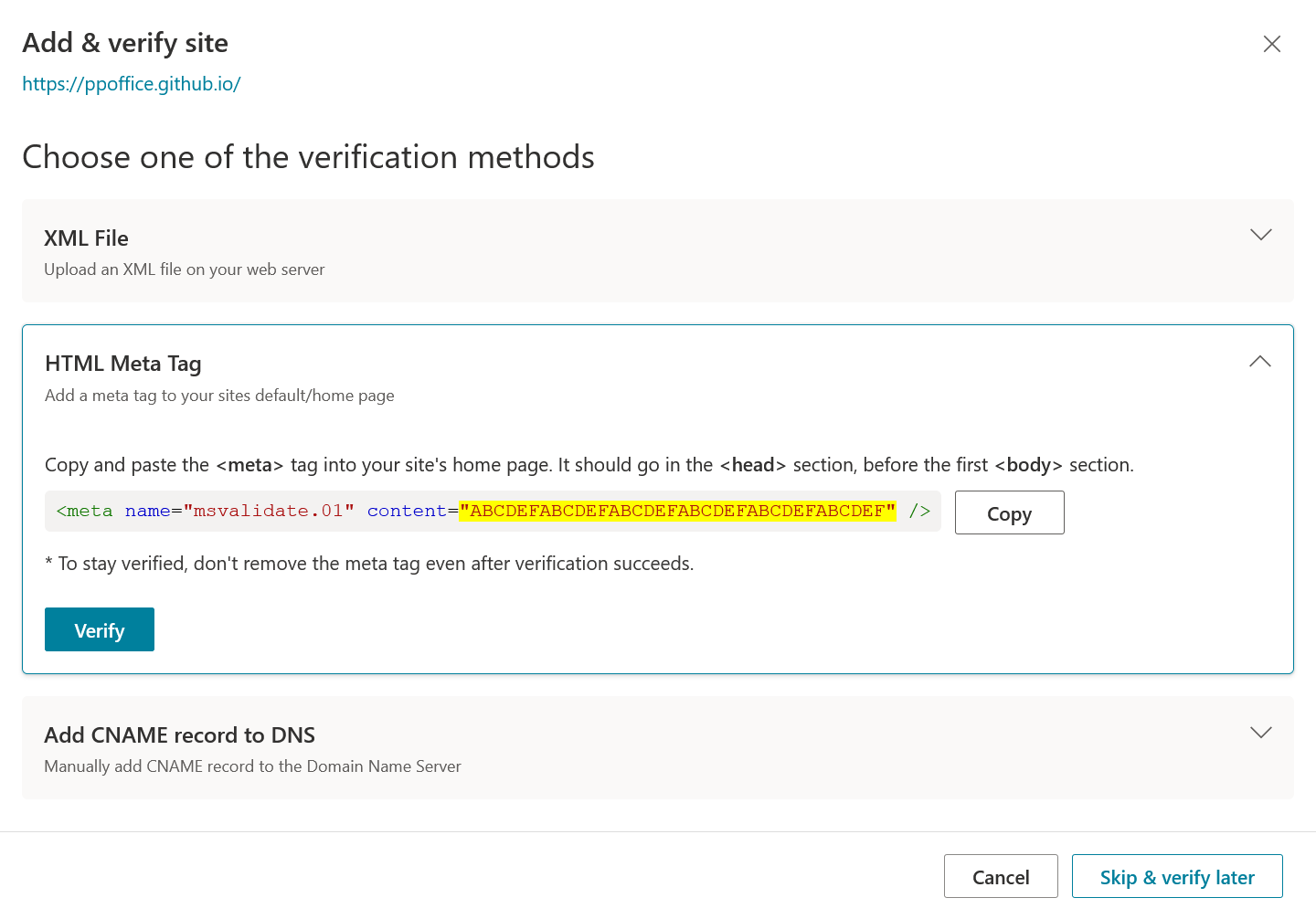
_config.icarus.yml 1
2
3plugins:
bing_webmaster:
tracking_id: ABCDEFABCDEFABCDEFABCDEFABCDEFABCDEF
BuSuanZi Web Counter
Installation Guide
Set the
plugins>busuanzitotrueto enable BuSuanZi web counter. It displays the number of views of the current post on the header of each blog post, and the number of unique visitors of the whole site at the bottom of each page._config.icarus.yml 1
2plugins:
busuanzi: true
CNZZ Statistics (Umeng+)
Installation Guide
Log into Umeng+. On the dashboard of Umeng+, click “Create new application” > “Web application”. Then, fill in your site information such as “website name”, “site domain name”, and “site homepage URL”. Click “Confirm adding the site” after finished.
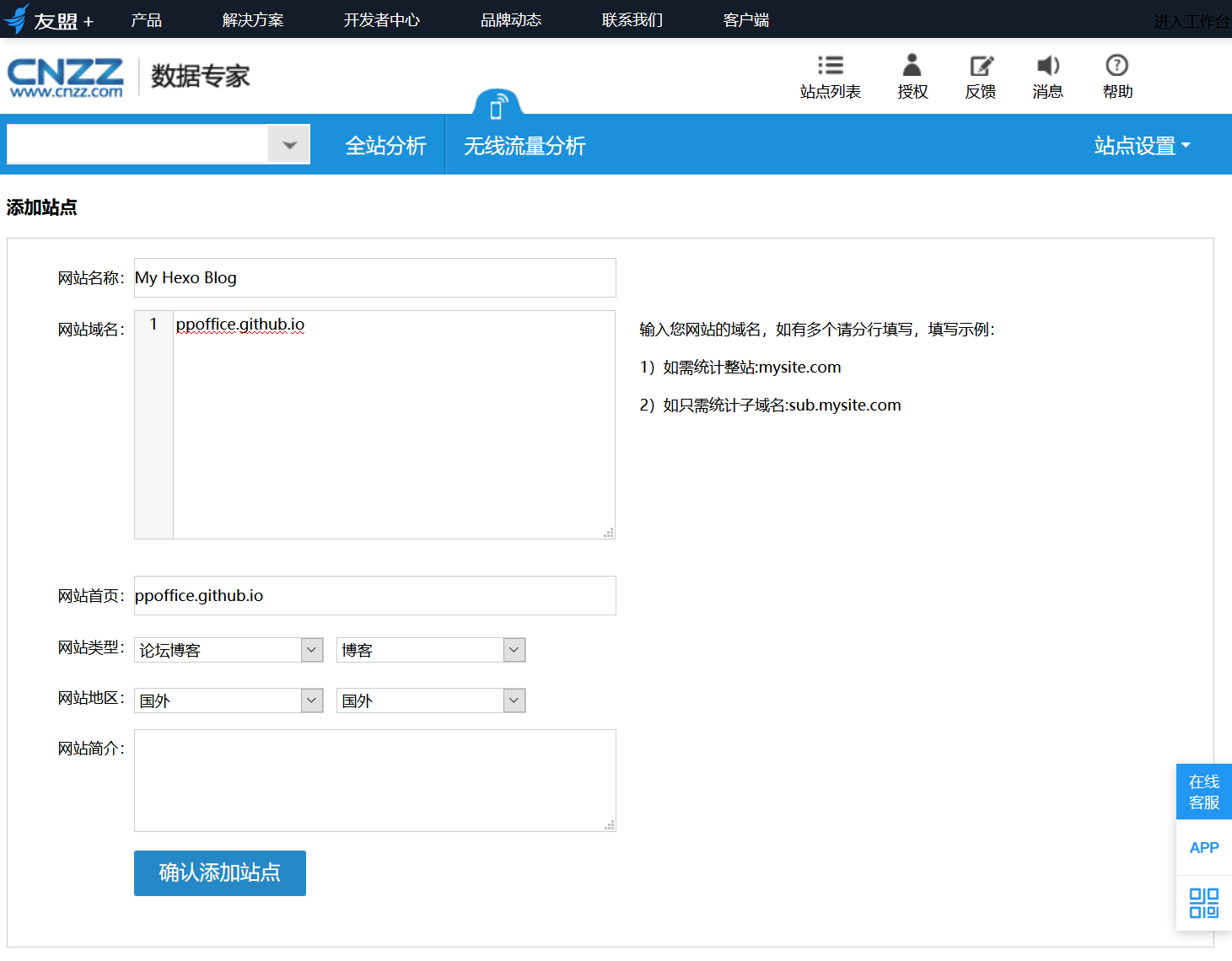
Find the HTML code in the “text style” row on the get installation code page. Copy the values of
idandweb_idto theplugins>cnzz>idandweb_idin the theme configurations, respectively.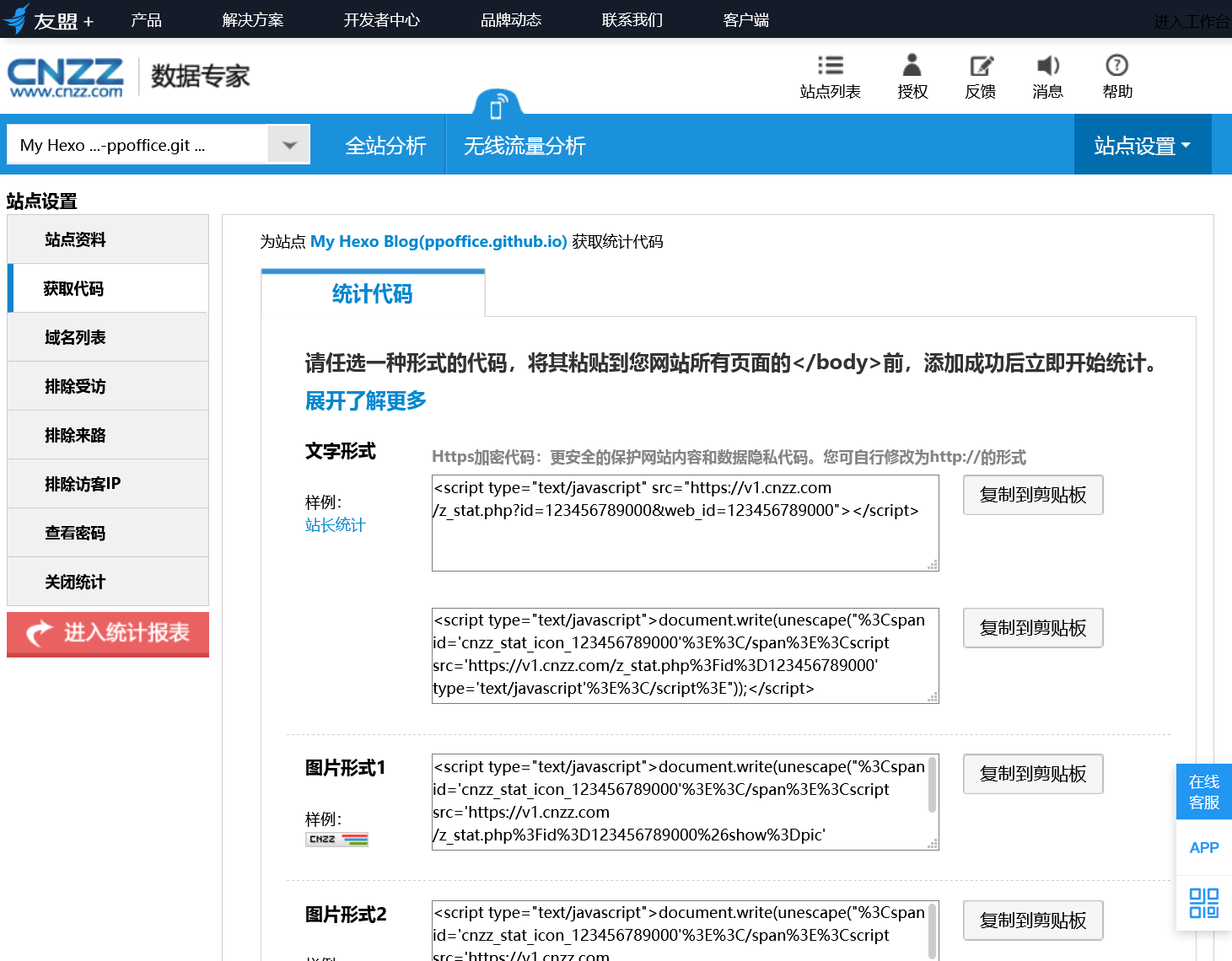
For example, the following CNZZ installation code:
CNZZ installation code 1
<script type="text/javascript" src="https://s9.cnzz.com/z_stat.php?id=123456789000&web_id=123456789000"></script>
maps to the following theme configuration:
_config.icarus.yml 1
2
3
4plugins:
cnzz:
id: 123456789000
web_id: 123456789000
Google Analytics
Installation Guide
Log into Google Analytics and open the “Admin” page. Create a new property, and fill in the property name, reporting time zone, currency, and your business details.
When asked to start collecting data, choose the “Web” platform. Enter the URL and a name for your site, and create the web data stream.
Find the “Measurement ID”, e.g.,
G-XXXXXXXXXX, in the details of the web data stream. You can also find it later in the “Data streams” list of the property on the “Admin” page. Set it to theplugins>google_analytics>tracking_idin the theme configurations to enable the Google Analytics plugin._config.icarus.yml 1
2
3plugins:
google_analytics:
tracking_id: G-XXXXXXXXXXIcarus adds the Google tag (gtag.js) with this ID to the
<head>of every page, so you do not need to copy the tag that Google Analytics shows you.
Hotjar
Installation Guide
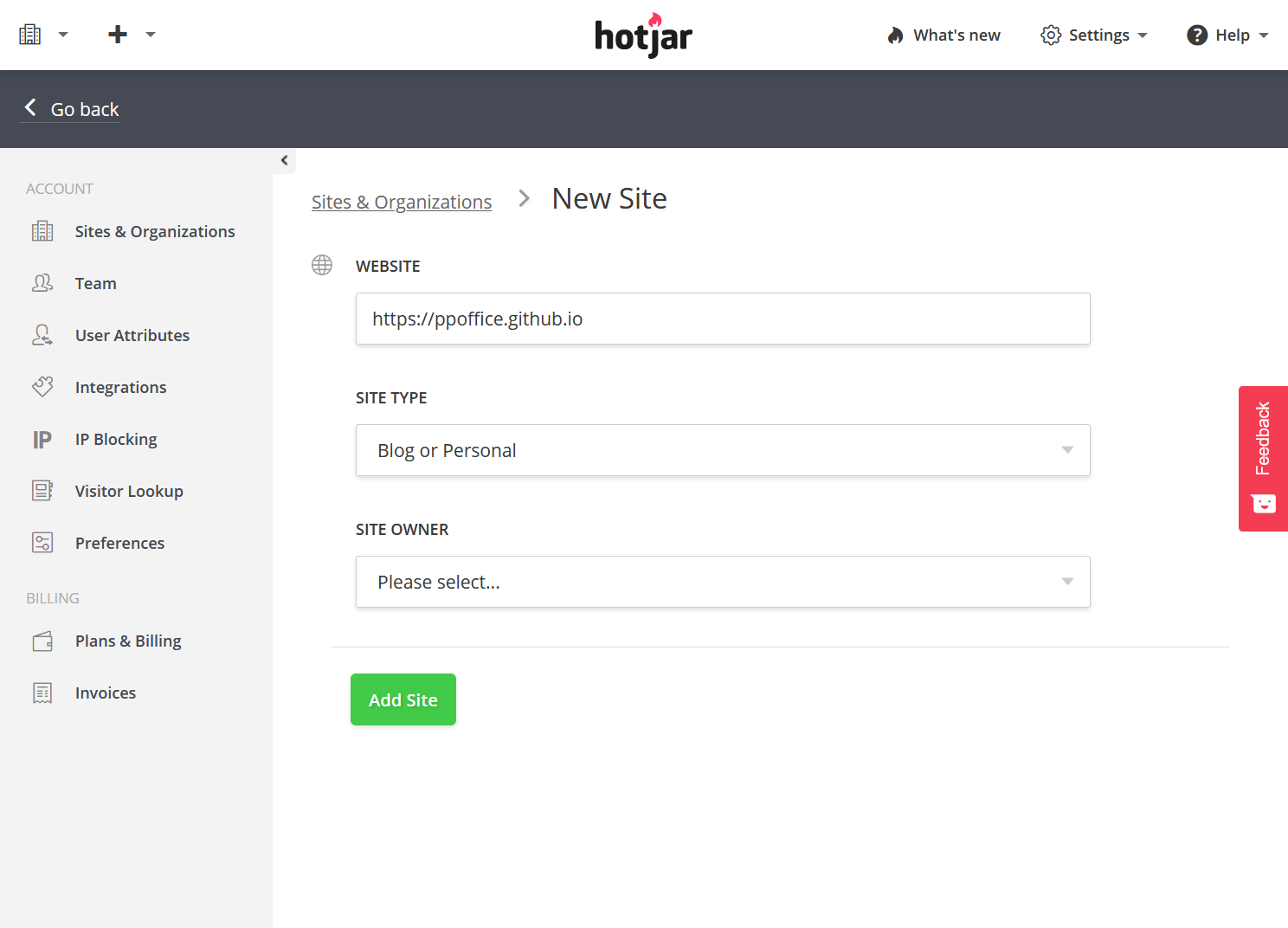
Log into Hotjar and click the ➕ (plus sign) > “Add new site” link on the top left of the page.
Fill in the “WEBSITE”, “SITE TYPE”, and “SITE OWNER”, then click the “Add Site” button.
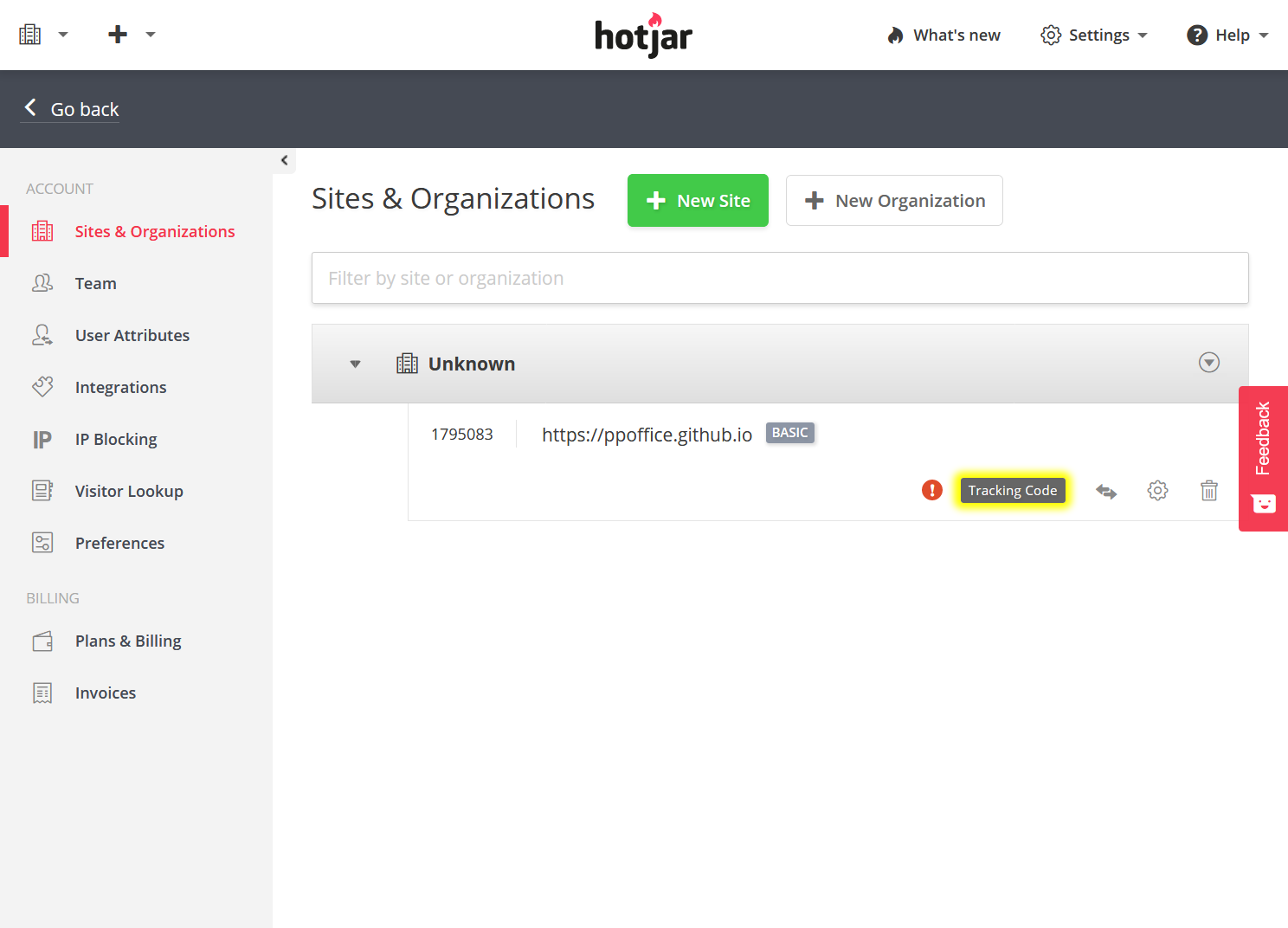
Find the newly created site on the “Sites & Organizations” page you have been redirected to. Click the “Tracking Code” button on the right.
Copy the value of “Site ID” (e.g., 1234567) from the popup dialog to
plugins>hotjar>site_idin the theme configurations to enable the Hotjar plugin.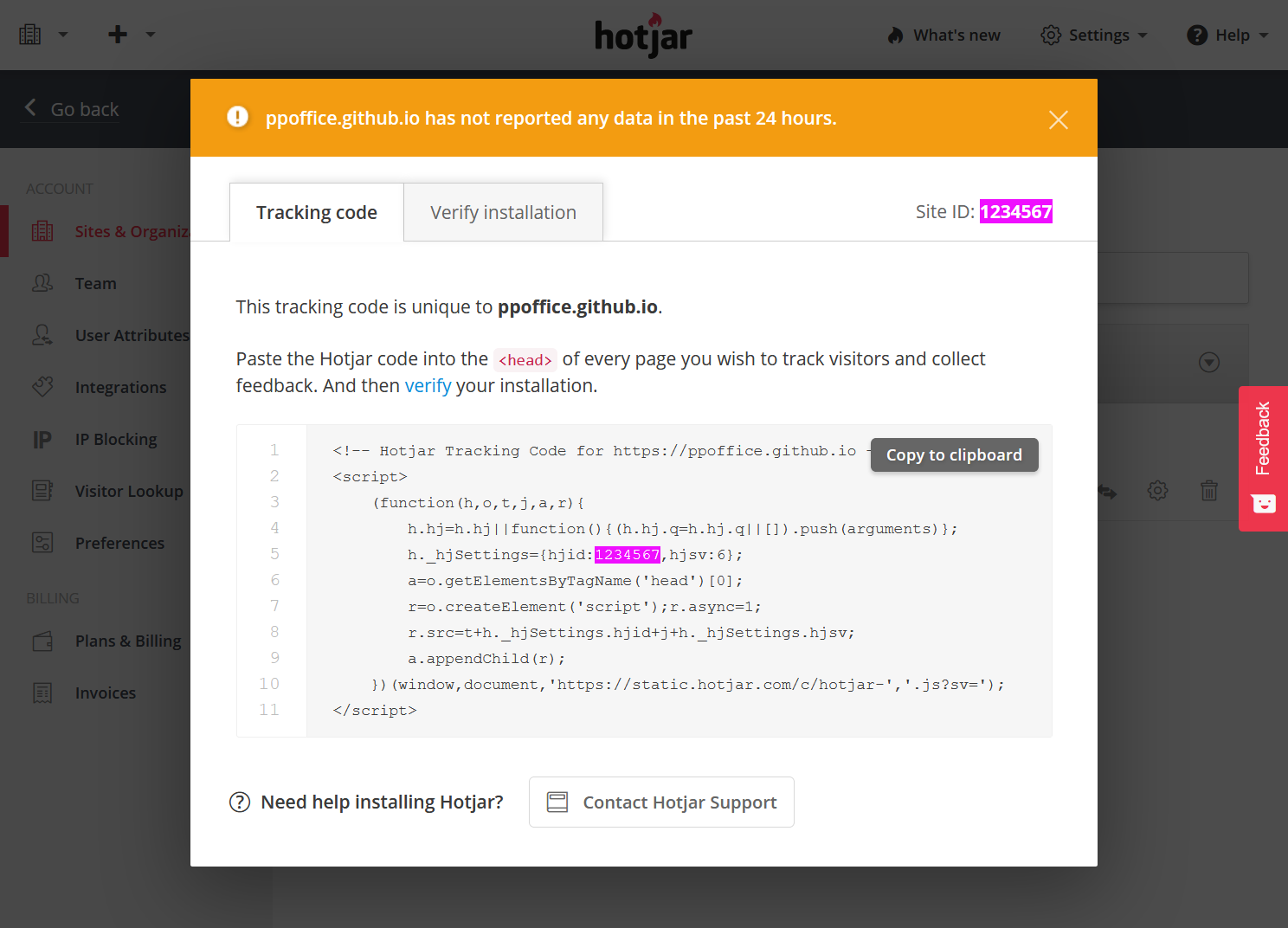
_config.icarus.yml 1
2
3plugins:
hotjar:
site_id: 1234567
Matomo
Installation Guide
Set up Matomo, either on your own server or with Matomo Cloud, and add your site to it.
Find the JavaScript tracking code of your site in Matomo. Copy the value of
u(the URL of your Matomo server) and the value passed tosetSiteIdtoplugins>matomo>urlandplugins>matomo>site_idin the theme configurations, respectively. Both settings are required.For example, the following Matomo tracking code:
Matomo tracking code 1
2
3
4
5
6
7
8
9
10
11<script>
var _paq = window._paq = window._paq || [];
_paq.push(['trackPageView']);
_paq.push(['enableLinkTracking']);
(function() {
var u="https://matomo.example.com/";
_paq.push(['setTrackerUrl', u+'matomo.php']);
_paq.push(['setSiteId', '1']);
...
})();
</script>maps to the following theme configuration:
_config.icarus.yml 1
2
3
4
5
6
7
8plugins:
matomo:
# URL of your Matomo server, such as https://matomo.example.com/ or https://example.matomo.cloud/
url: https://matomo.example.com/
# ID of your site in Matomo
site_id: 1
# Optional. Set to true to track visitors without cookies. Defaults to false.
disable_cookies: falseIcarus loads
matomo.jsfrom your Matomo server. When PJAX is enabled, every page that visitors switch to is tracked as a new page view.
Statcounter
Installation Guide
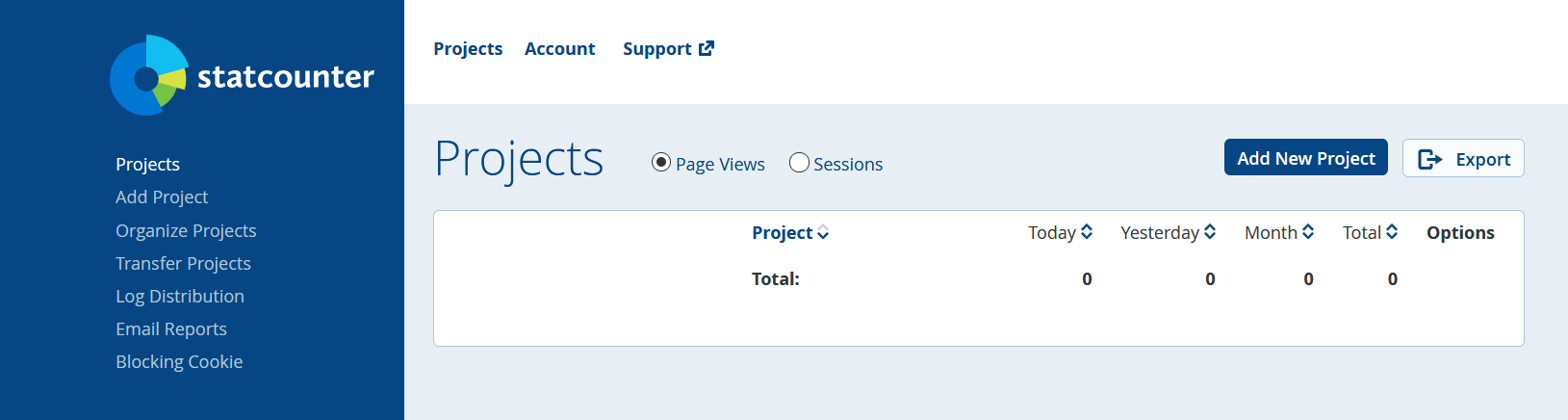
Log into Statcounter. Click “Add New Project” button in the “Projects” page.
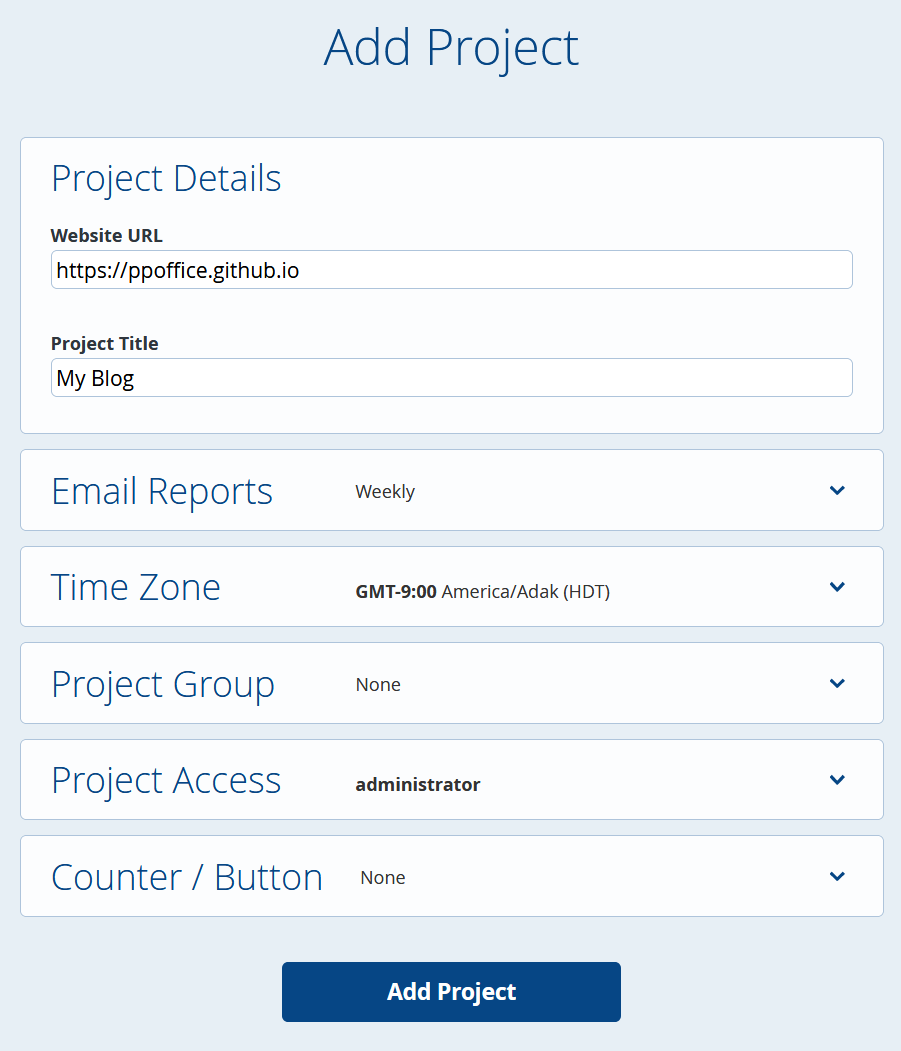
Fill in the website URL and project title in the “Add Project” page. Tweak rest of the project settings if you need to. Then, click the “Add Project” button.
Click “Continue to Default Installation” in the “Platform Check Complete” page.

Finally, in the “Insert the Code on Your Website” page, copy the value of
sc_projectandsc_securityvariable in the HTML snippet toplugins>statcounter>projectandplugins>statcounter>securityin the theme configurations, respectively.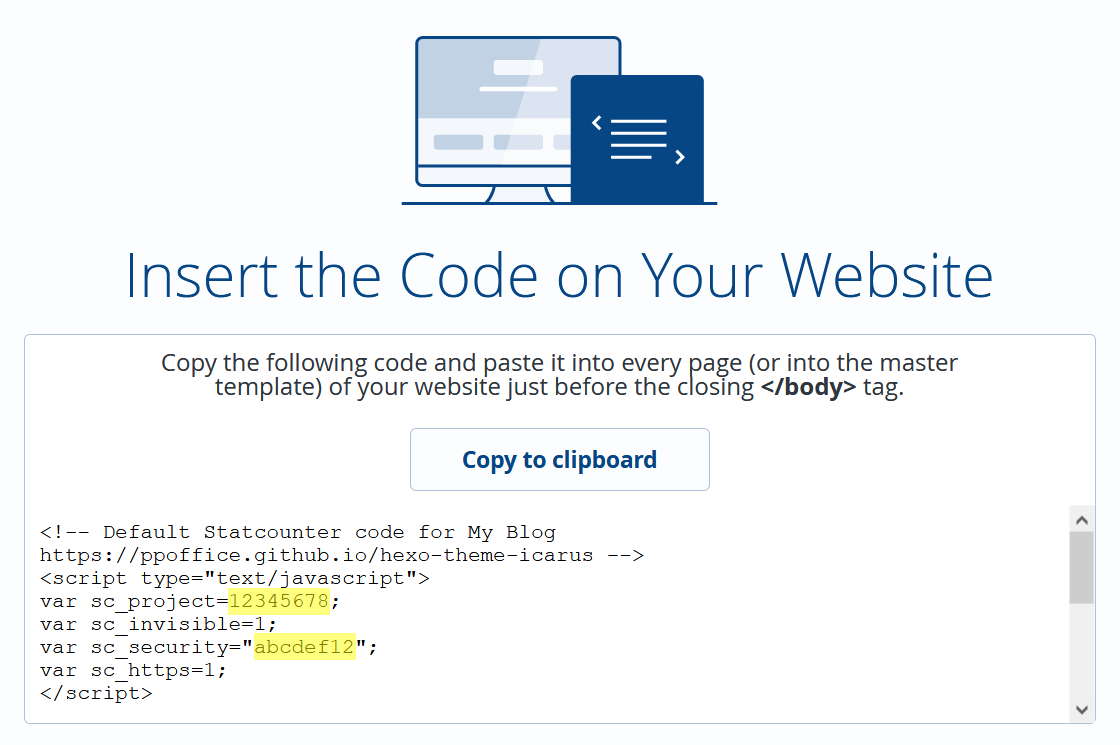
For example, the following Statcounter code:
Statcounter code 1
2
3
4
5
6
7
8
9
10<script type="text/javascript">
var sc_project=12345678;
var sc_invisible=1;
var sc_security="abcdef12";
var sc_https=1;
</script>
<script type="text/javascript"
src="https://www.statcounter.com/counter/counter.js"
async></script>
...maps to the following theme configuration:
_config.icarus.yml 1
2
3
4plugins:
statcounter:
project: 12345678
security: abcdef12
Twitter (X) Conversion Tracking
Installation Guide
Follow How to set up conversion tracking to enable universal website tag of Twitter conversion tracking.
Find the
init(Pixel ID) in your conversion tracking code. Copy its value toplugins>twitter_conversion_tracking>pixel_idin the theme configurations.For example, the following Twitter conversion tracking code:
Twitter conversion tracking code 1
2
3
4
5
6
7
8
9
10
11<!-- Twitter universal website tag code -->
<script>
!function(e,n,u,a){e.twq||(a=e.twq=function(){a.exe?a.exe.apply(a,arguments):
a.queue.push(arguments);},a.version='1',a.queue=[],t=n.createElement(u),
t.async=!0,t.src='//static.ads-twitter.com/uwt.js',s=n.getElementsByTagName(u)[0],
s.parentNode.insertBefore(t,s))}(window,document,'script');
// Insert Twitter Pixel ID and Standard Event data below
twq('init','abcdef');
twq('track','PageView');
</script>
<!-- End Twitter universal website tag code -->maps to the following theme configuration:
_config.icarus.yml 1
2
3plugins:
twitter_conversion_tracking:
pixel_id: abcdef
Umami
Installation Guide
Add your site to Umami, either on Umami Cloud or on your own Umami server.
Find the tracking code of your site in Umami. Copy the value of
data-website-idtoplugins>umami>website_idin the theme configurations. This setting is required. If you host Umami yourself, also copy thesrcof the script toplugins>umami>script_url.For example, the following Umami tracking code:
Umami tracking code 1
<script defer src="https://umami.example.com/script.js" data-website-id="12345678-abcd-1234-abcd-123456789abc"></script>
maps to the following theme configuration:
_config.icarus.yml 1
2
3
4
5
6
7
8plugins:
umami:
# ID of your site in Umami
website_id: 12345678-abcd-1234-abcd-123456789abc
# Optional. URL of the Umami tracker script. Defaults to https://cloud.umami.is/script.js (Umami Cloud).
script_url: https://umami.example.com/script.js
# Optional. Only track the visits on these comma-separated domains, e.g., example.com,www.example.com
domains:Umami also tracks the pages that visitors switch to with PJAX.
Waline Page View Counter
Installation Guide
Waline can count the views of each page as well as
host comments.
The counter uses the same Waline client as the comments.
To count page views with Waline and display the number of views on the header of each post, set
plugins > waline_pageview to true in the theme configurations.
The counter then uses the server_url of the
Waline comment plugin, which requires comment > type to be
waline:
1 | plugins: |
If you use another comment plugin, or want to count page views with a different Waline server, set the URL of your
Waline server in plugins > waline_pageview > server_url instead:
1 | plugins: |
Some notes on this plugin:
- Do not also turn on the
pageviewsetting of the Waline comment plugin, or each page view is counted twice. Icarus prints a warning when you generate your site with both of them on. - If neither
server_urlis set, the counter is not shown, and Icarus prints a warning when you generate your site. - Pages are counted by the path of their URLs, and the pages that visitors switch to with PJAX are counted too.
Icarus User Guide - Web Analytics Plugins