Icarus User Guide - Widgets
This article covers widgets supported by Icarus.
To display multiple widgets at once, simply add individual widget configuration
to the widgets array.
They will appear in the order of their definitions.
The type and position settings are required for every widget.
Here is an example:
1 | widgets: |
Sidebar Layout
Widgets with position: left are placed in the left sidebar, and those with position: right in the right
sidebar.
A page has two columns when only one of the sidebars has widgets, and three columns when both of them do.
In the three-column layout, the right sidebar is only shown on wide screens (1280px and wider).
On smaller screens, its widgets are moved to the bottom of the left sidebar.
To disable all widgets, set widgets to null in your theme configurations.
Like other theme settings, widgets can also be set in the layout configuration files (_config.post.yml and
_config.page.yml) or in the front-matter of a post or page, so you can turn off widgets only for some pages:
1 | widgets: null |
Profile
You can showcase the post author/site admin information via the profile widget. Its configuration is listed below:
1 | widgets: |
Some notes on the configuration:
If
authoris not set, theauthorin the site configuration file_config.ymlis shown instead.If you wish to use Gravatar as your profile picture, fill in the Gravatar email address in the
gravatarsetting. Whengravataris set, it is used even ifavataris also set. If neither of them is set, no picture is shown.There are two acceptable formats for
social_links:Icon:
social_links 1
2
3<link_name>:
icon: <fontawesome_icon_class_name>
url: <link_url>Text:
social_links 1
<link_name>: <link_url>
Table of Contents
To show the table of contents of the current post, add the following widget configuration to your theme configurations:
1 | widgets: |
Then, add toc: true to the front-matter of your post or page:
1 | title: A post with the table of contents |
Some notes on the table of contents widget:
- The widget is only shown on posts and pages that have
toc: truein their front-matter. On other pages, it takes no space, and its sidebar is removed if it has no other widgets. depthcounts the heading levels that the post actually uses, starting from the highest one. For example, withdepth: 2, a post whose headings start at##shows its##and###headings.- While your visitors read the post, the entry of the current section is highlighted and kept in view in the table of contents.
- On mobile phones, the widget is hidden from the page. Instead, a button in the navigation bar opens the table of contents on top of the page.
External Links
You can display a list of external sites with the external links widget. An example configuration is listed below:
1 | widgets: |
The hostname of each site is shown next to its name.
To hide it for a site, write the site as an object with the link and hide_hostname settings:
1 | widgets: |
GitHub Contribution Calendar
The GitHub contribution calendar widget shows the recent contributions of a GitHub user. It loads the data from the third-party GitHub Contributions API service, so no GitHub token is needed. Its configuration is listed below:
1 | widgets: |
Recent Posts
Use the following configuration to enable the recent posts widget:
1 | widgets: |
Archives
Use the following configuration to enable the archives widget:
1 | widgets: |
If amount is set and there are more archives than that, a “More” link to the archive page is added to the
end of the list.
The show_count setting requires hexo-component-inferno 4.2.0 or later.
Categories
Use the following configuration to enable the categories widget:
1 | widgets: |
If amount is set and there are more top-level categories than that, a “More” link to the categories page is
added to the end of the list.
The order_by, depth, show_current, and show_count settings require hexo-component-inferno 4.2.0 or later.
Tags
Use the following configuration to enable the tags widget:
1 | widgets: |
If amount is set and there are more tags than that, a “More” link to the tags page is added to the end of the
list.
follow.it
To enable follow.it email subscription widget, take the following steps:
First, you need to generate the RSS feed of your Hexo site using a Hexo plugin like hexo-generator-feed.
Go to follow.it and enter the URL to your RSS feed file in the text input under “Add the follow feature to your site”, e.g.,
http://example.com/atom.xml. Then, click “Next”.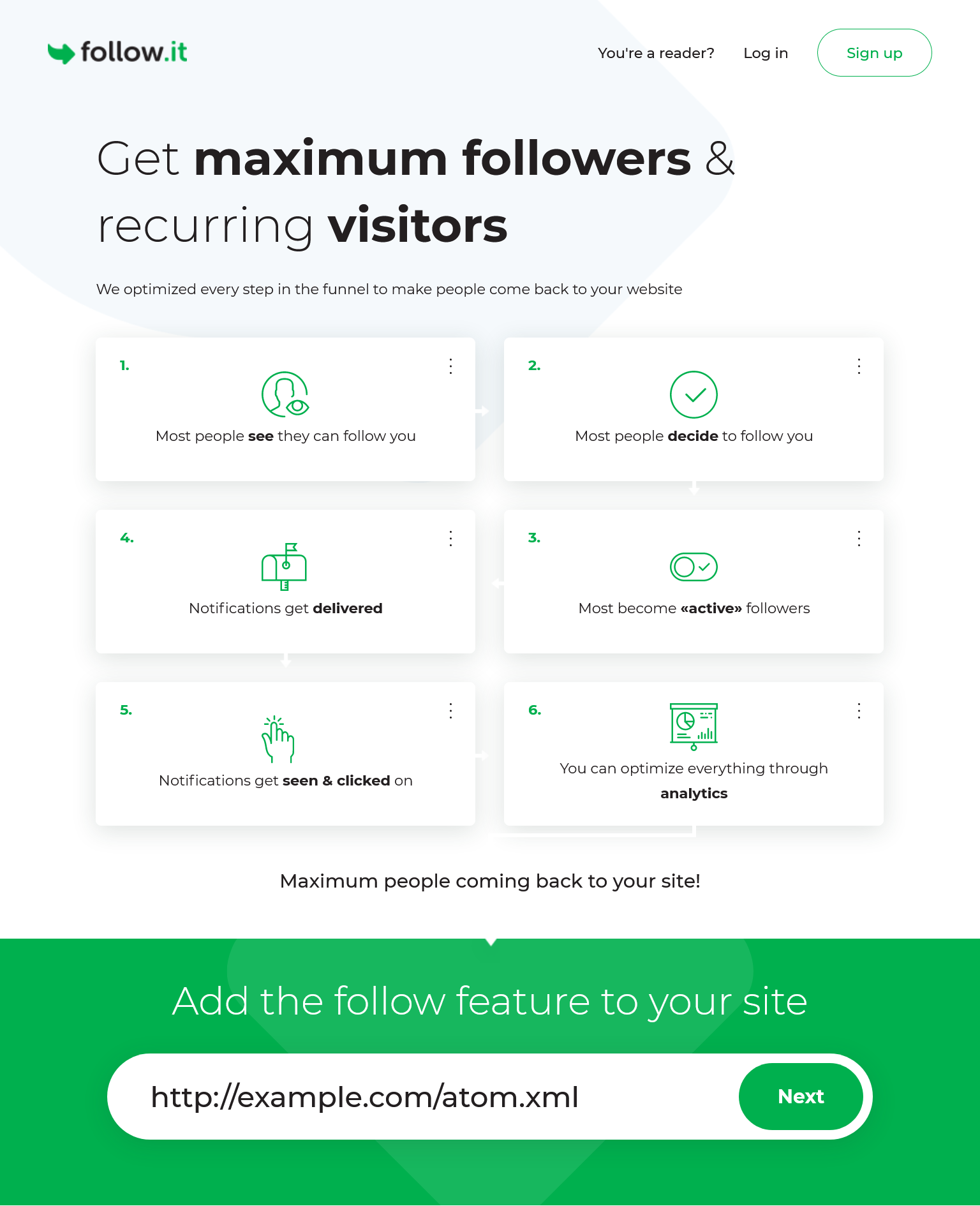
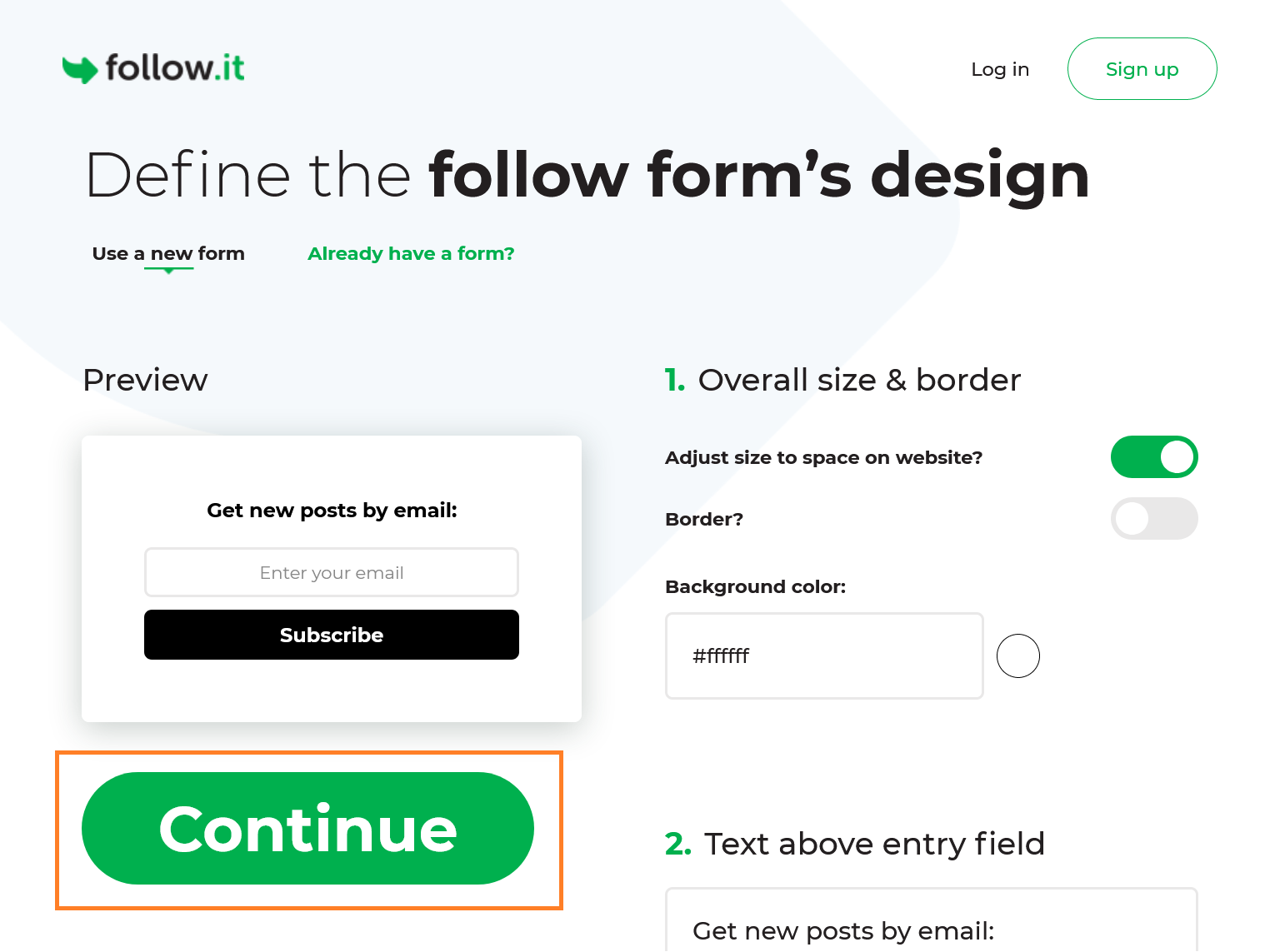
Click the “Continue” button on the “Define the follow form’s design” page.
Search for
action=and copy the link between double quotes afteraction=. Paste the action link you copied to theaction_urlsetting of the widget configuration. After that, click “Done”.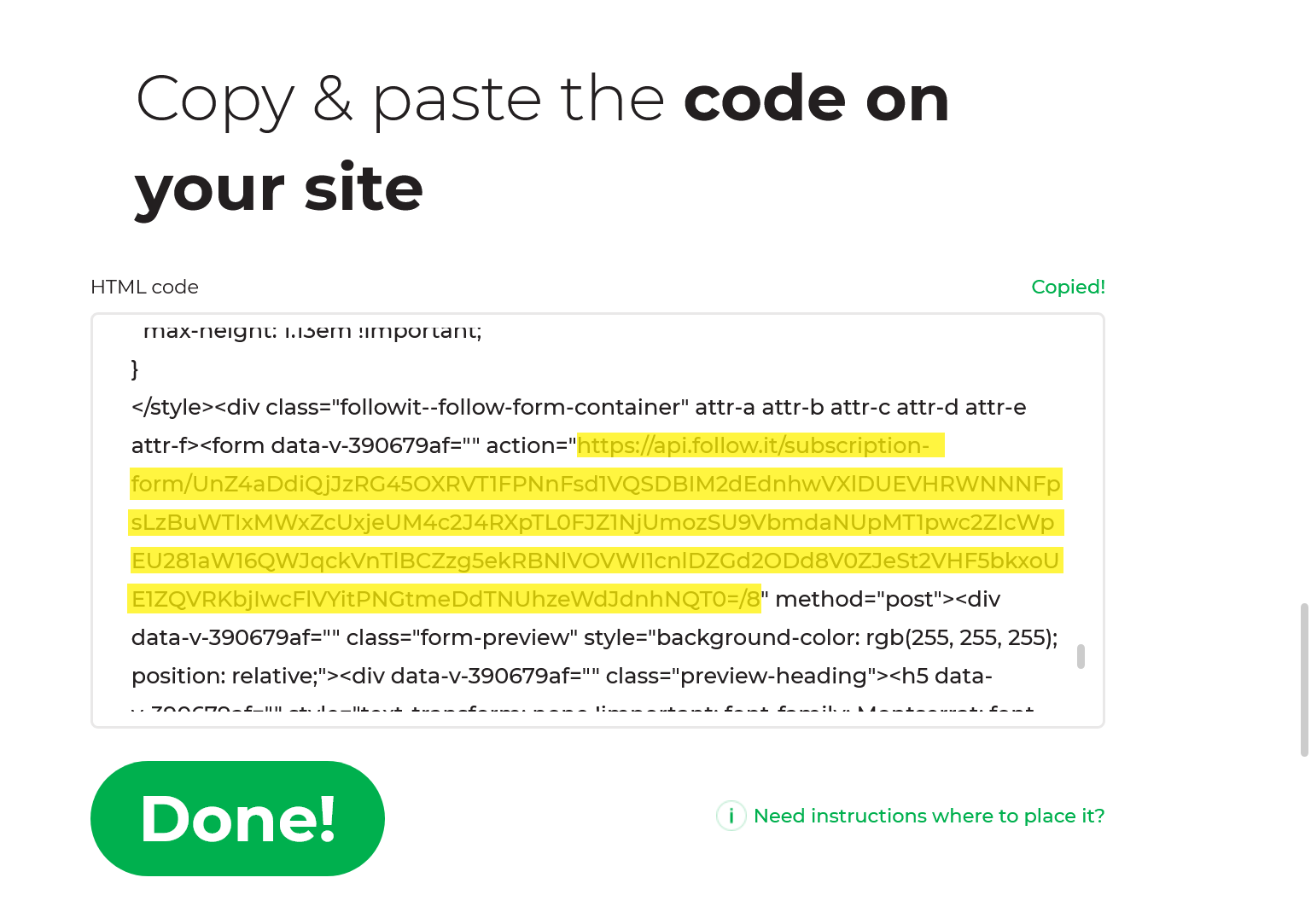
_config.icarus.yml 1
2
3
4
5
6
7widgets:
-
position: left
type: followit
description:
action_url: https://api.follow.it/******
verification_code: ''Click the “Continue” button or the “Skip this” link to skip the “Pick the Follow icons you want” page and “Show a pop-up for maximum conversion” page.
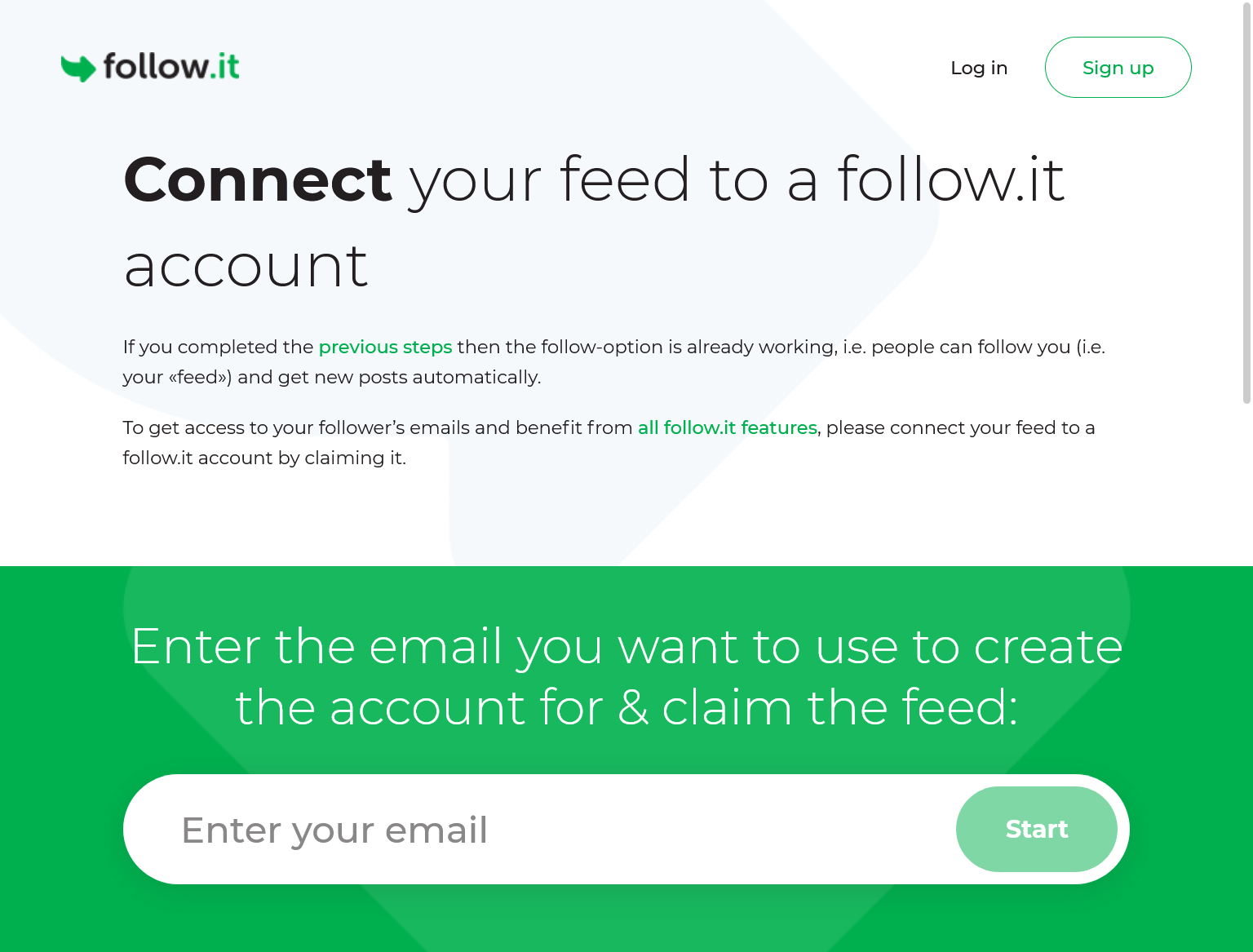
At the “Connect your feed to a follow.it account” page, enter your email address that you will use to create a follow.it account and manage followers in the text input. Then, click “Start”.
You will then receive an email from follow.it. In that email, search for
<meta name="follow.it-verification-code" content="******"/>and copy thecontentvalue between double quotes aftercontent=. Paste the content value you copied to theverification_codesetting of the widget configuration. Icarus adds a verification meta tag with this code to the<head>of your pages.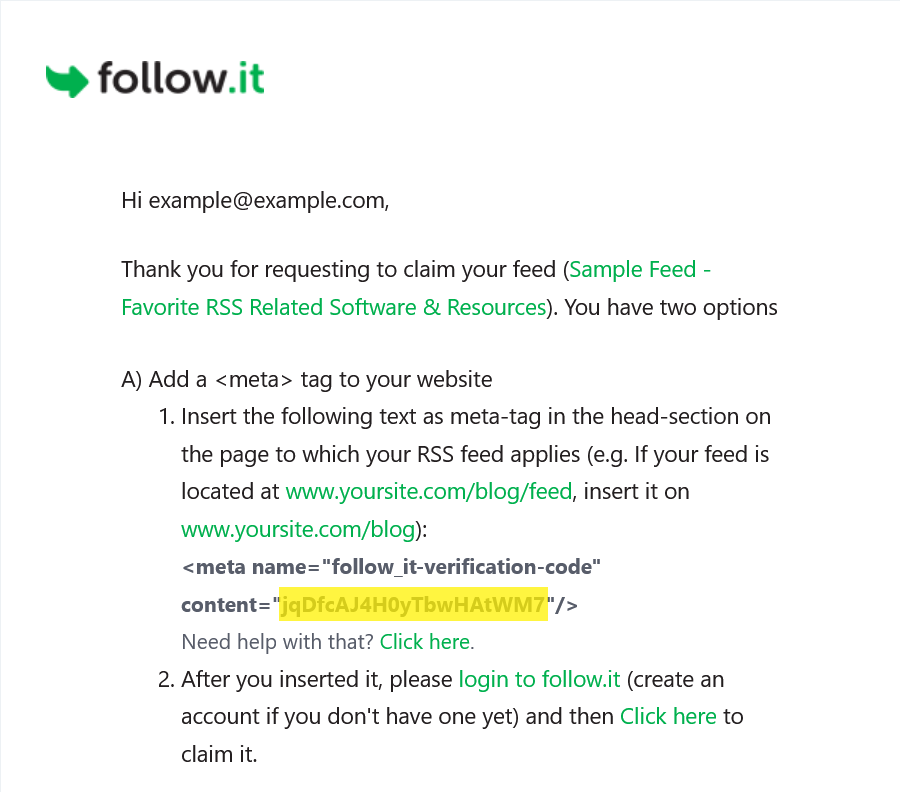
_config.icarus.yml 1
2
3
4
5
6
7widgets:
-
position: left
type: followit
description:
action_url: https://api.follow.it/******
verification_code: ******Generate and push your site to your server.
Go back to follow.it and register an account using your email.
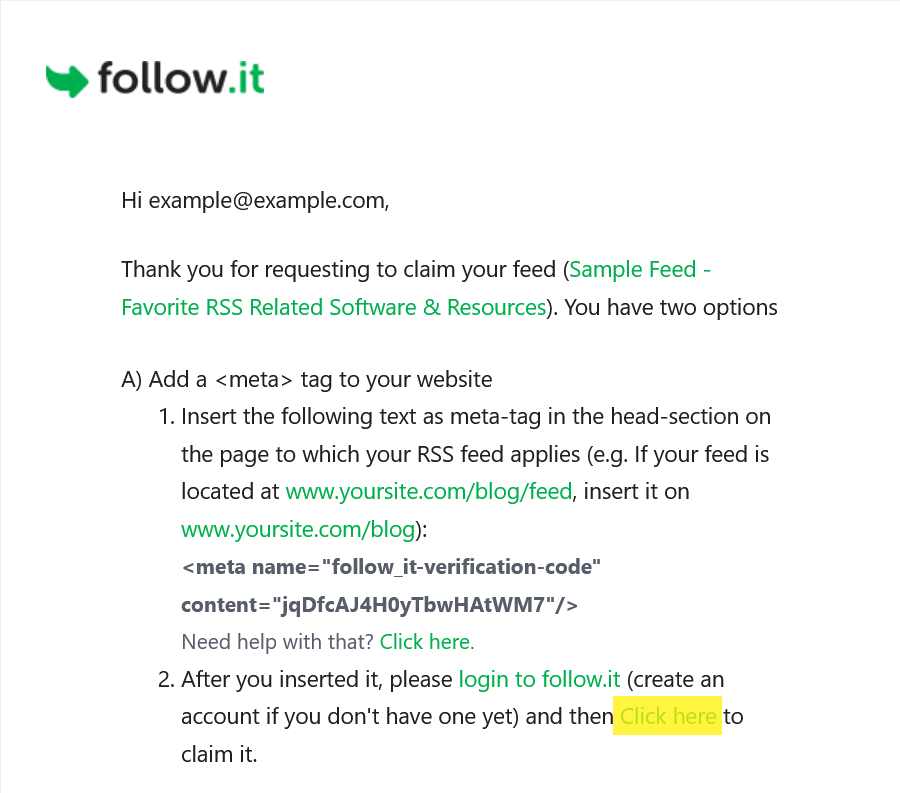
Go back to the first email you receive and click on the “Click here to claim it” link to claim your feed.
Google AdSense
Create a new AD on Google AdSense.
Then, copy the values of data-ad-client and data-ad-slot from the AD HTML code to
the client_id and slot_id setting of the widget configuration, respectively.
Here is an example:
1 | widgets: |
Icarus User Guide - Widgets
https://ppoffice.github.io/hexo-theme-icarus/Widgets/icarus-user-guide-widgets/