Icarus用户指南 - 挂件
本文介绍Icarus支持的页面挂件的安装配置。
若要同时展示多个挂件,只需在主题配置的widgets数组中添加多个挂件配置。
它们会按照定义的顺序出现。
每个挂件必须包含type(挂件类型)与position(挂件展示位置)设置项。
示例如下:
1 | widgets: |
侧边栏布局
position为left的挂件显示在左侧边栏中,position为right的挂件显示在右侧边栏中。
只有一侧的边栏有挂件时,页面分为两栏;两侧的边栏都有挂件时,页面分为三栏。
在三栏布局中,右侧边栏只在宽屏(1280px及以上)上显示。
在较窄的屏幕上,右侧边栏的挂件会移到左侧边栏的底部。
若要关闭所有挂件,请将主题配置中的widgets设置为null。
和其他主题配置一样,widgets也可以在布局配置文件(_config.post.yml和_config.page.yml)或文章、页面的front-matter中设置,
因此你可以只在部分页面上关闭挂件:
1 | widgets: null |
作者资料卡
你可以启用作者资料卡挂件来展示文章作者/网站站长的信息。 资料卡的配置如下所示:
1 | widgets: |
需要注意的是:
如果没有设置
author,则显示站点配置文件_config.yml中的author。如果你希望使用Gravatar作为头像图片,请在
gravatar项填入你的Gravatar邮箱地址。 设置了gravatar时,即使同时设置了avatar,也会使用Gravatar头像。 两者都没有设置时,不显示头像。social_links可以采用如下两种格式:图标形式:
social_links 1
2
3<链接名称>:
icon: <FontAwesome图标的HTML_class名称>
url: <链接的URL地址>文字形式:
social_links 1
<链接名称>: <链接的URL地址>
文章目录
若要展示文章目录,请在主题配置中添加如下挂件配置:
1 | widgets: |
然后,在需要开启目录的文章或页面的front-matter中加入toc: true:
1 | title: 一篇有目录的文章 |
关于文章目录挂件需要注意的是:
- 文章目录挂件只在front-matter中有
toc: true的文章和页面上显示。 在其他页面上它不会占用空间,如果所在的侧边栏没有其他挂件,这一侧边栏也不会显示。 depth从文章实际使用的最高一级标题开始计算层级。 例如设置depth: 2时,标题从##开始的文章会显示##和###标题。- 访客阅读文章时,目录中当前章节的条目会高亮显示,并保持在可见区域内。
- 在手机上,页面中不显示这个挂件,而是在导航栏中显示一个按钮,点击即可在页面上方打开文章目录。
友站链接
你可以使用友站链接挂件来展示外部网站的列表。 示例配置如下所示:
1 | widgets: |
每个网站名称的旁边会显示其域名。
若要隐藏某个网站的域名,请将其写成包含link和hide_hostname设置的对象:
1 | widgets: |
GitHub贡献日历
GitHub贡献日历挂件可以展示一位GitHub用户近期的贡献记录。 它从第三方服务GitHub Contributions API获取数据,因此不需要GitHub Token。 挂件配置如下:
1 | widgets: |
最新文章
使用如下挂件配置来开启最新文章挂件:
1 | widgets: |
文章归档
使用如下挂件配置来开启文章归档挂件:
1 | widgets: |
设置了amount并且归档数量超过它时,列表末尾会加上一个指向归档页面的“更多”链接。
show_count需要hexo-component-inferno 4.2.0及以上版本。
文章分类
使用如下挂件配置来开启文章分类挂件:
1 | widgets: |
设置了amount并且顶级分类数量超过它时,列表末尾会加上一个指向分类页面的“更多”链接。
order_by、depth、show_current和show_count需要hexo-component-inferno 4.2.0及以上版本。
文章标签
使用如下挂件配置来开启文章标签挂件:
1 | widgets: |
设置了amount并且标签数量超过它时,列表末尾会加上一个指向标签页面的“更多”链接。
follow.it
按照如下步骤即可启用follow.it邮件订阅挂件:
首先,使用诸如hexo-generator-feed此类的Hexo插件生成 你的Hexo网站的RSS源。
访问follow.it并在“向你的站点添加关注功能”(Add the follow feature to your site)下方的 输入框中填写RSS源的文件地址,例如
http://example.com/atom.xml。 然后,点击“下一步”(Next)。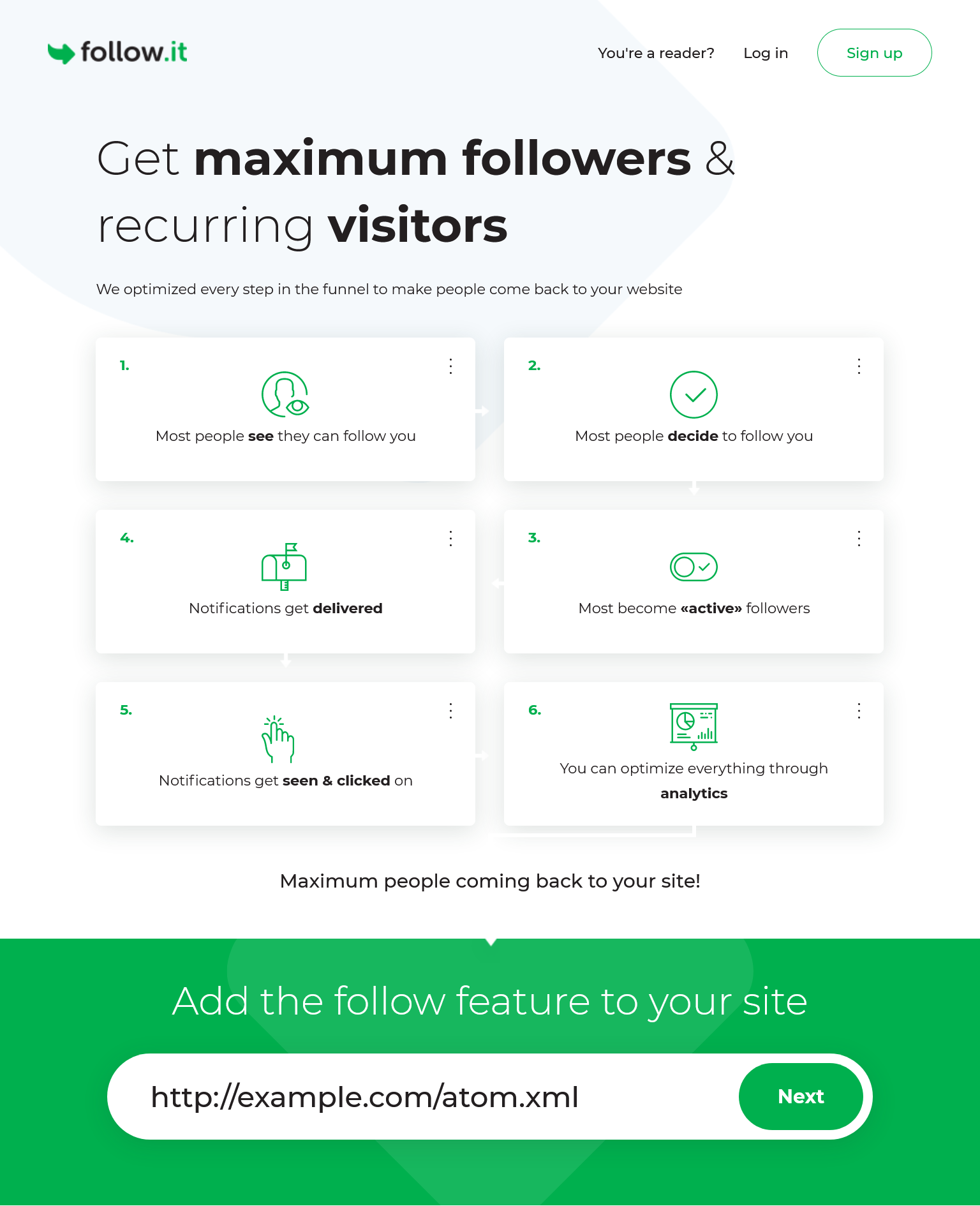
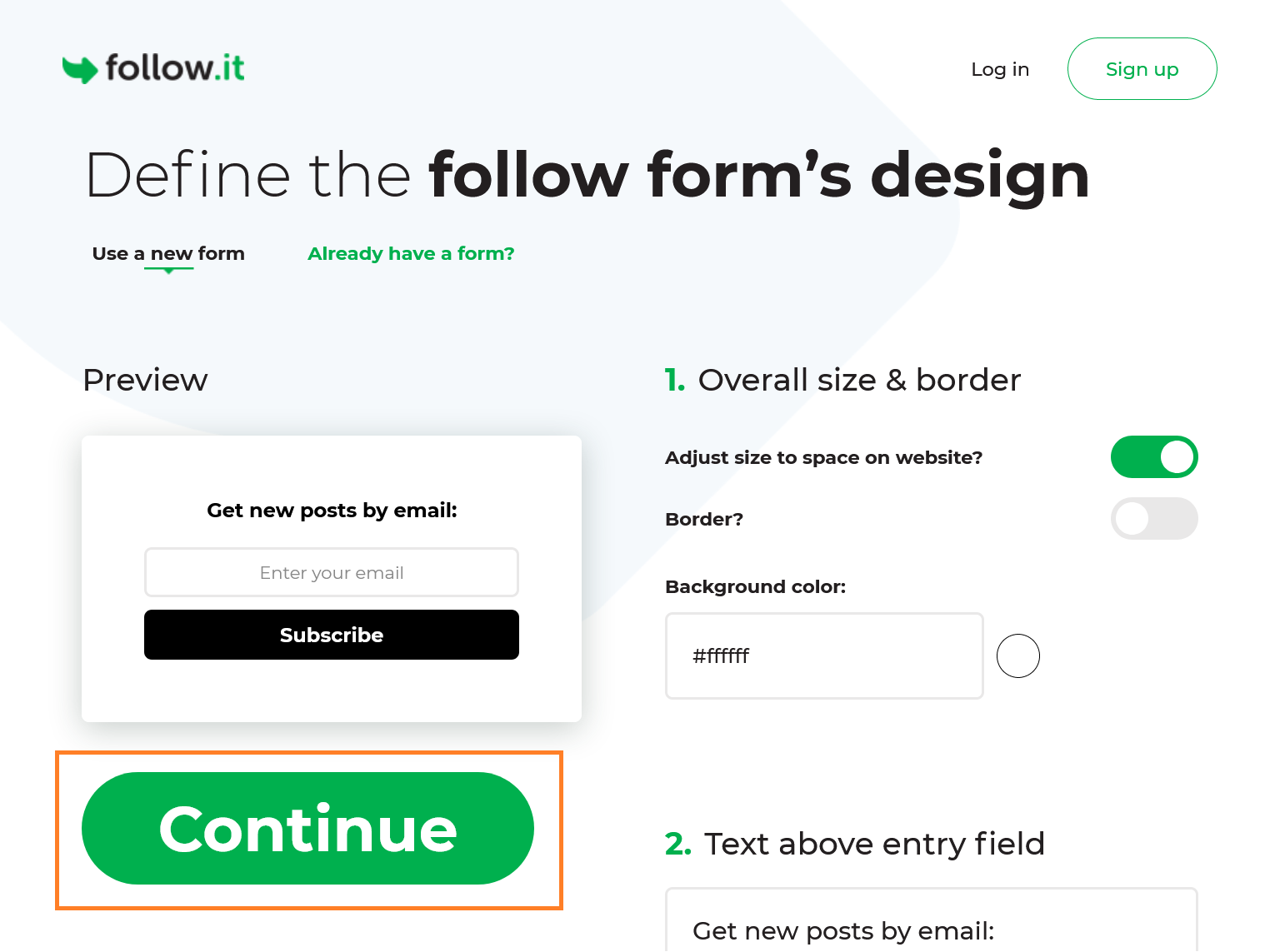
点击“定义关注表单设计”(Define the follow form’s design)页面上的“继续”(Continue)按钮。
搜索
action=并复制action=后双引号中的链接。 把你复制的action链接粘贴到挂件配置中的action_url设置项。 在那之后,点击“完成”(Done)。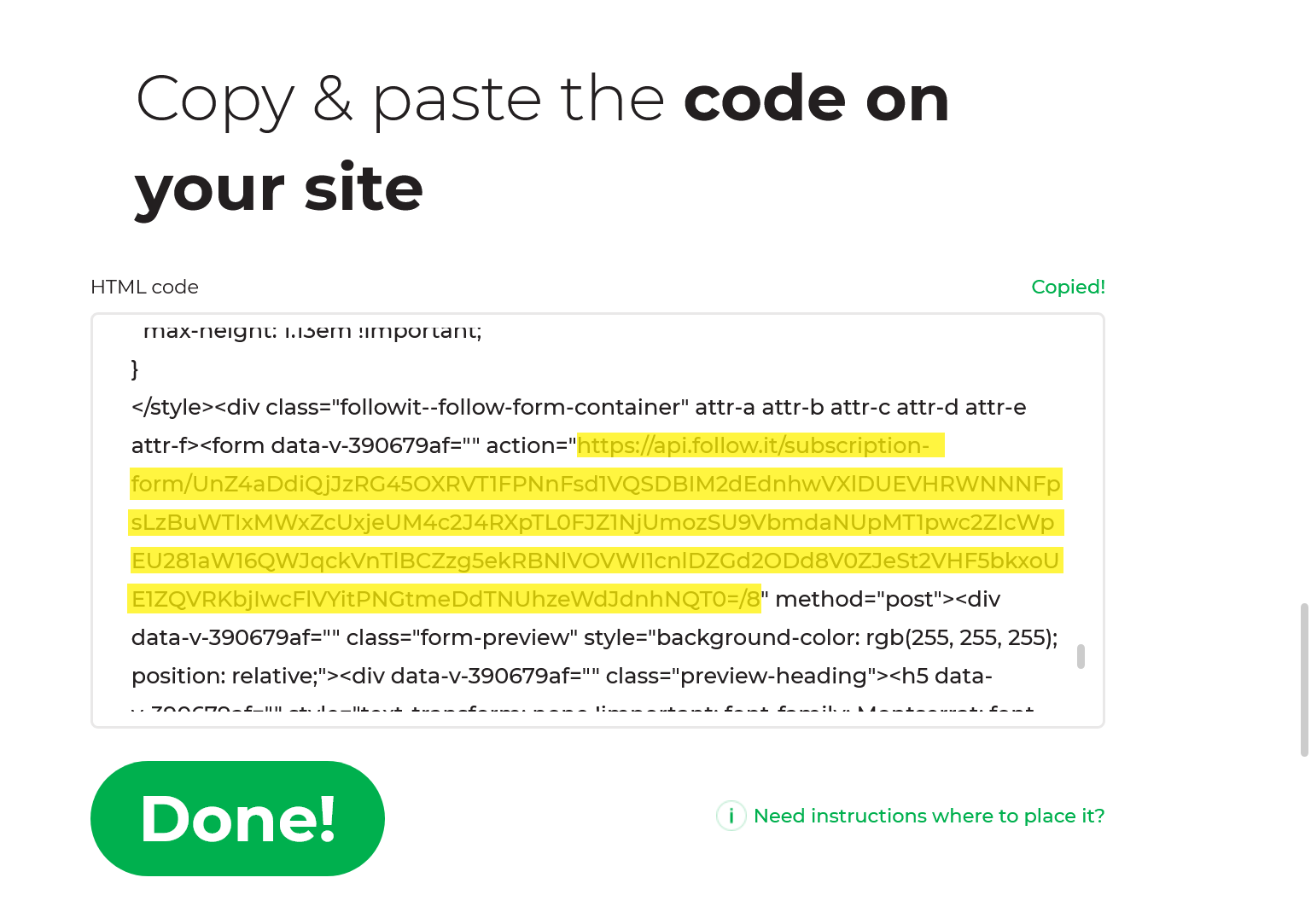
_config.icarus.yml 1
2
3
4
5
6
7widgets:
-
position: left
type: followit
description:
action_url: https://api.follow.it/******
verification_code: ''点击“继续”(Continue)按钮或者“跳过此步”(Skip this)链接来跳过“选择你想要的关注按钮”(Pick the Follow icons you want)和 “显示弹窗来最大化交流”(Show a pop-up for maximum conversion)页面。
在“连接你的源到follow.it账户”(Connect your feed to a follow.it account)页面上,在输入框中填入你将要用来注册follow.it账户 和管理订阅者的邮箱地址。 然后,点击“开始”(Start)。
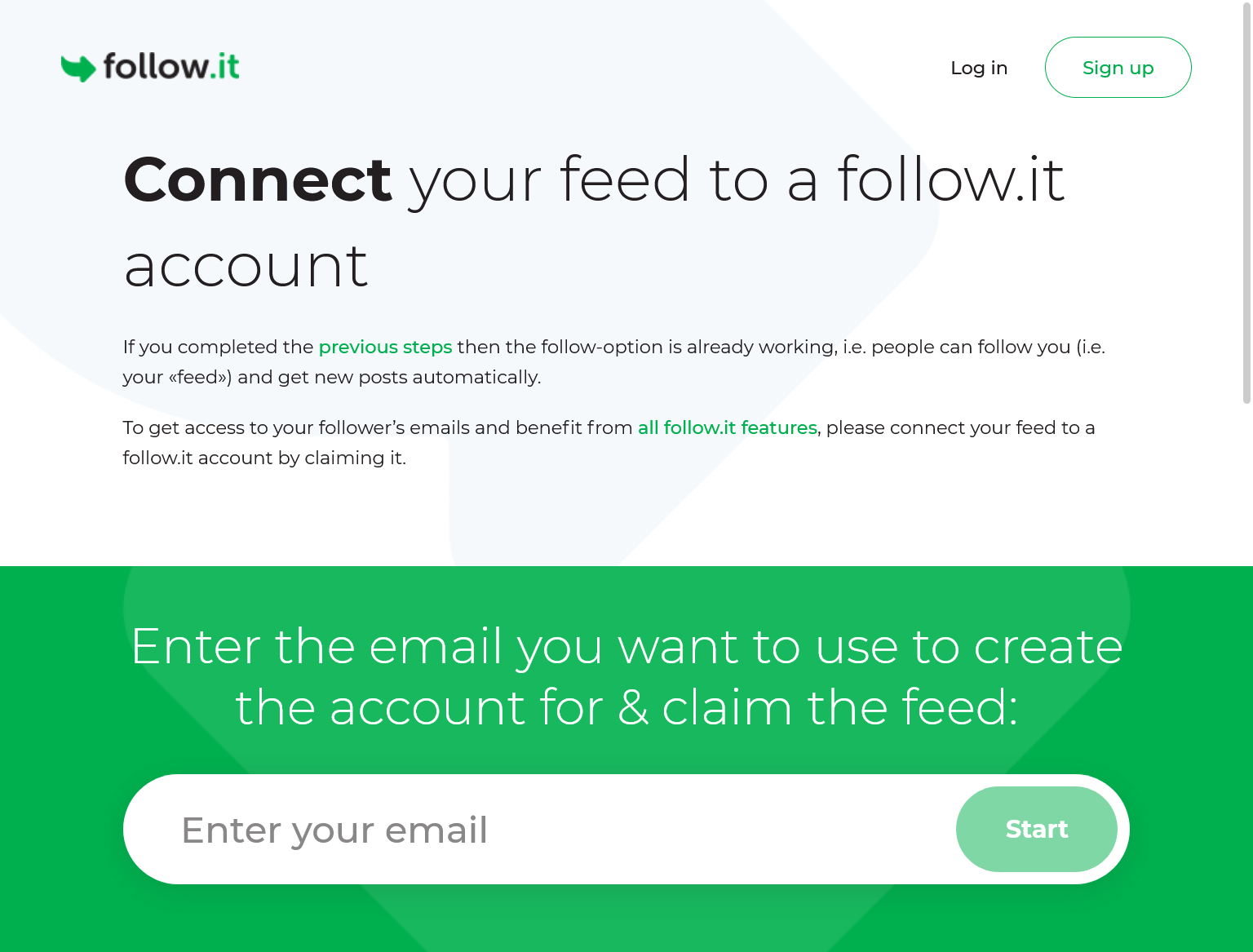
你会收到一封来自follow.it的邮件。 在那封邮件中搜索
<meta name="follow.it-verification-code" content="******"/>并复制content=后双引号中的content的值。 将你复制的值粘贴到挂件设置中的verification_code设置项。 Icarus会用这个验证码在你的网页的<head>中加入验证用的meta标签。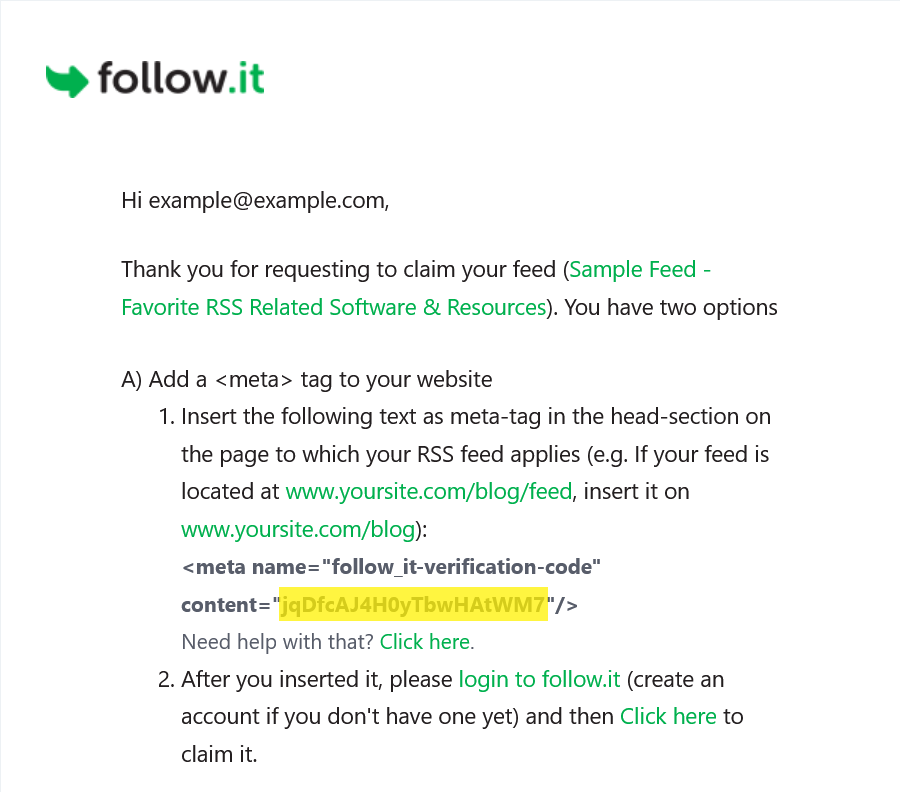
_config.icarus.yml 1
2
3
4
5
6
7widgets:
-
position: left
type: followit
description:
action_url: https://api.follow.it/******
verification_code: ******生成你的站点并将其上传到你的服务器。
回到follow.it并用你的邮箱地址注册一个账户。
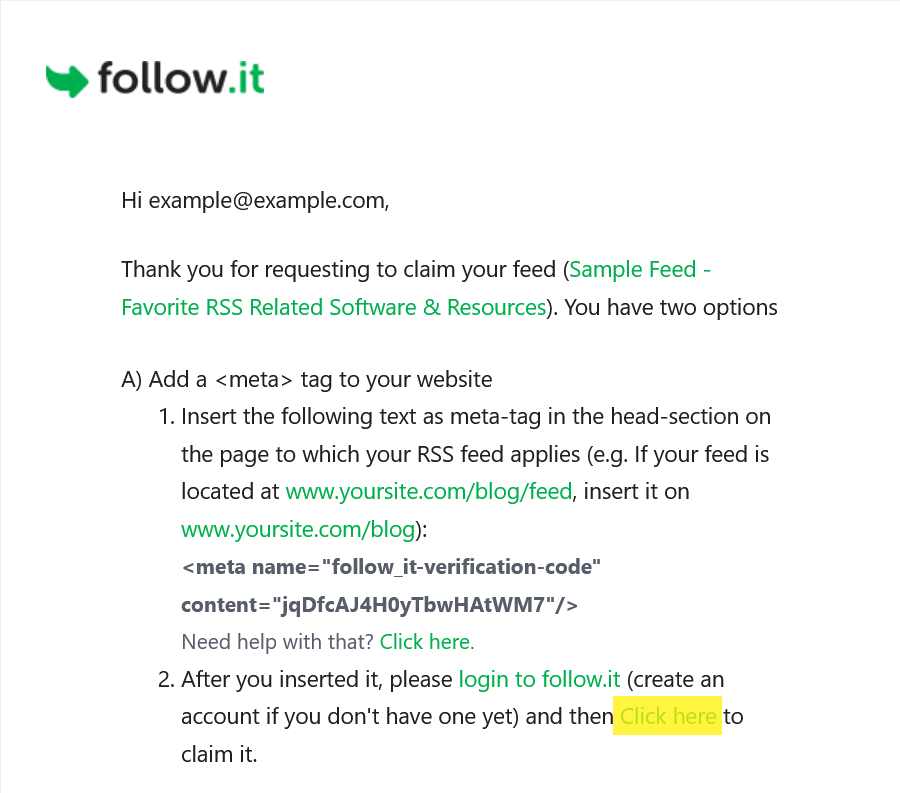
回到你收到的第一封邮件并点击“点击这里来认领”(Click here to claim it)链接来认领你的订阅源。
Google AdSense
在Google AdSense上新建广告。
然后,复制广告HTML代码中的data-ad-client和data-ad-slot值分别填入到挂件配置的client_id和slot_id项中。
示例如下:
1 | widgets: |