Icarus用户指南 - 分享按钮
本文介绍Icarus支持的分享按钮的安装配置。
AddToAny
你可以启用AddToAny而无需注册用户。 仅需将下面的代码放到你的主题配置中:
_config.icarus.yml 1
2share:
type: addtoany
如果你想自定义分享按钮,请采用如下步骤:
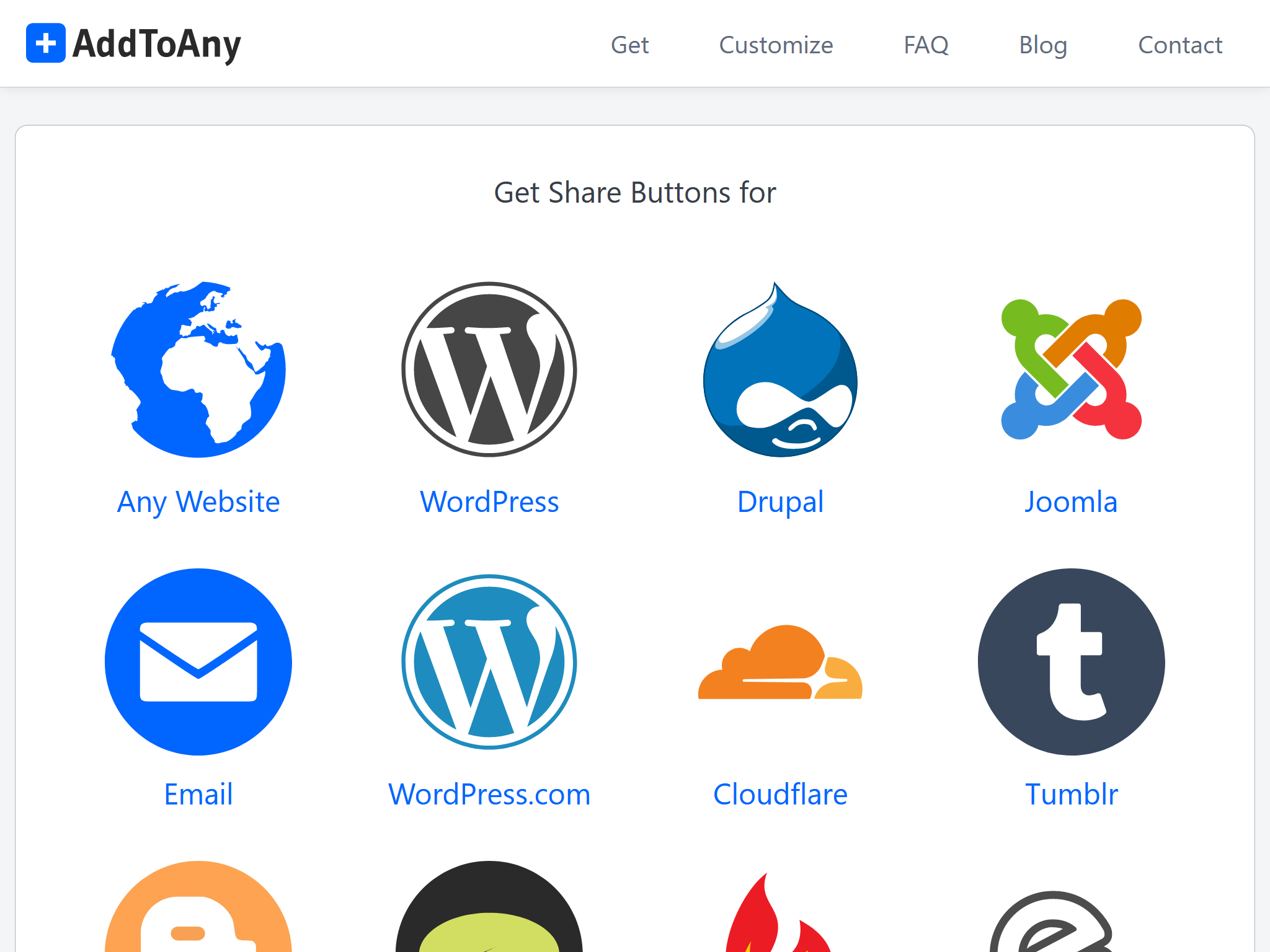
访问AddToAny官网并点击“获取分享按钮”(Get the Share Button)。
然后,选择“任意网站”(Any Website)并完成按钮的配置。
完成后点击“获取按钮代码”(Get Button Code)。
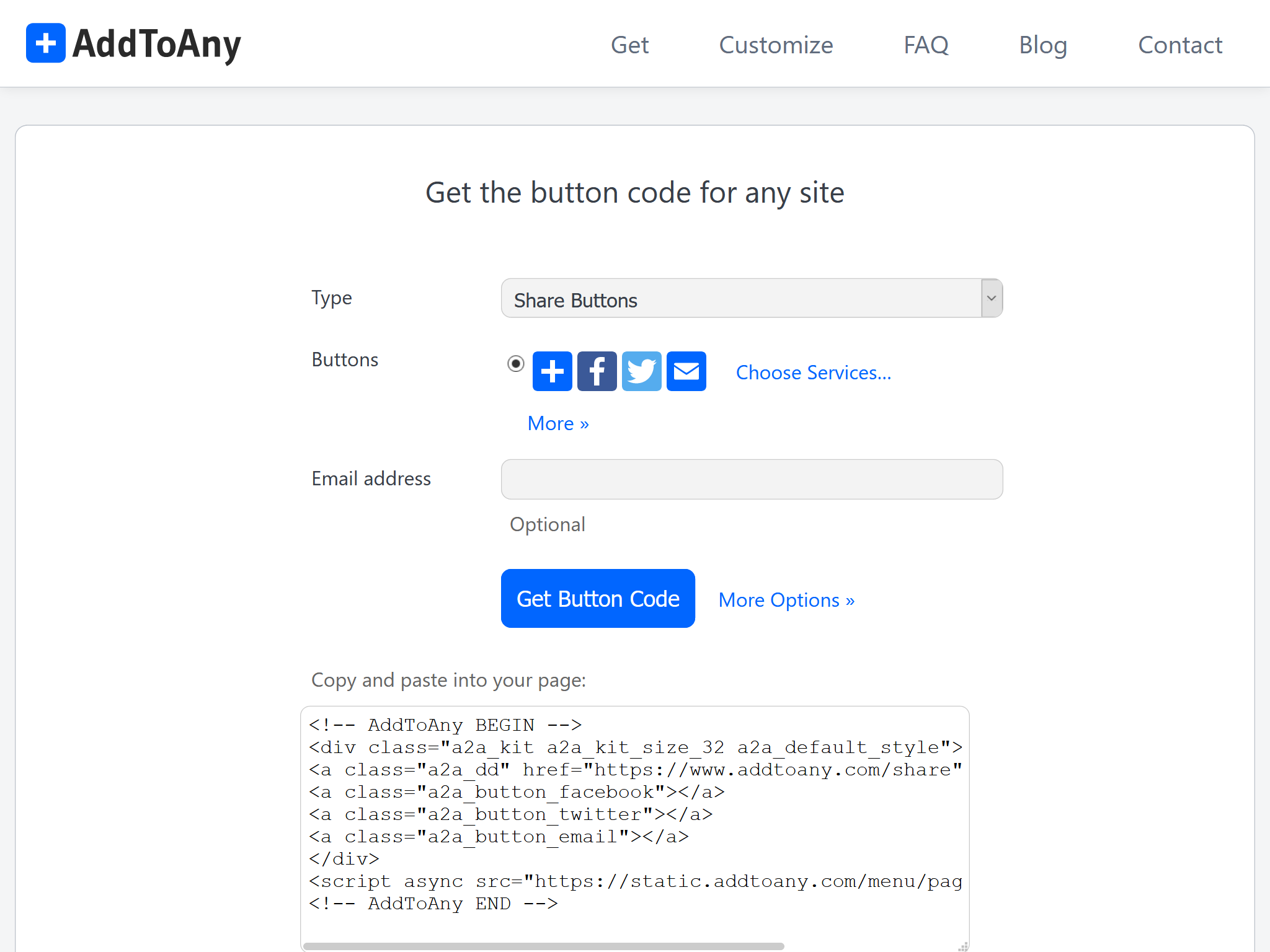
由于分享按钮是由ppoffice/hexo-component-inferno 提供,你需要从这个仓库的src/view/share目录中把AddToAny的布局文件复制到
<icarus_directory>/layout/share/addtoany.jsx。 Icarus会优先使用它自己layout/目录下的布局文件,而不是hexo-component-inferno中同一路径的文件。 然后,替换addtoany.jsx中AddToAny代码并修正文件头部的包引用。例如,假设下面的代码是你从上一步获得的代码:
AddToAny代码 >folded 1
2
3
4
5
6
7
8
9<!-- AddToAny BEGIN -->
<div class="a2a_kit a2a_kit_size_32 a2a_default_style">
<a class="a2a_dd" href="https://www.addtoany.com/share"></a>
<a class="a2a_button_facebook"></a>
<a class="a2a_button_twitter"></a>
<a class="a2a_button_email"></a>
</div>
<script async src="https://static.addtoany.com/menu/page.js"></script>
<!-- AddToAny END -->那么你需要对
addtoany.jsx做出如下修改:<icarus_directory>/layout/share/addtoany.jsx >folded 1
2
3
4
5
6
7
8
9
10
11
12
13
14
15
16
17
18
19
20
21
22
23
24
25
26
27
28
29
30
31const { Component, Fragment } = require('inferno');
- const { cacheComponent } = require('../../util/cache');
+ const { cacheComponent } = require('hexo-component-inferno/lib/util/cache');
...中间省略部分代码...
class AddToAny extends Component {
render() {
return <Fragment>
- <div class="a2a_kit a2a_kit_size_32 a2a_default_style">
- <a class="a2a_dd" href="https://www.addtoany.com/share"></a>
- <a class="a2a_button_facebook"></a>
- <a class="a2a_button_twitter"></a>
- <a class="a2a_button_telegram"></a>
- <a class="a2a_button_whatsapp"></a>
- <a class="a2a_button_reddit"></a>
- </div>
- <script src="https://static.addtoany.com/menu/page.js" defer={true}></script>
+ <!-- 刚刚获取的AddToAny HTML代码…… -->
+ <div class="a2a_kit a2a_kit_size_32 a2a_default_style">
+ <a class="a2a_dd" href="https://www.addtoany.com/share"></a>
+ <a class="a2a_button_facebook"></a>
+ <a class="a2a_button_twitter"></a>
+ <a class="a2a_button_email"></a>
+ </div>
+ <script async src="https://static.addtoany.com/menu/page.js"></script>
</Fragment>;
}
}
...下面省略部分代码...
百度分享
安装指南
百度分享按钮无需注册用户。 通过下面的主题配置即可启用:
_config.icarus.yml 1
2share:
type: bdshare
Share.js
你可以启用Share.js分享按钮而无需用户注册。 直接将下面代码添加到主题配置中:
_config.icarus.yml 1
2share:
type: sharejs(可选)请参照AddToAny部分的个性化步骤与share.js主页 来了解更多关于自定义分享按钮的信息。
ShareThis
访问ShareThis并点击页面上的“从分享按钮开始”(Start with Share Buttons)按钮。
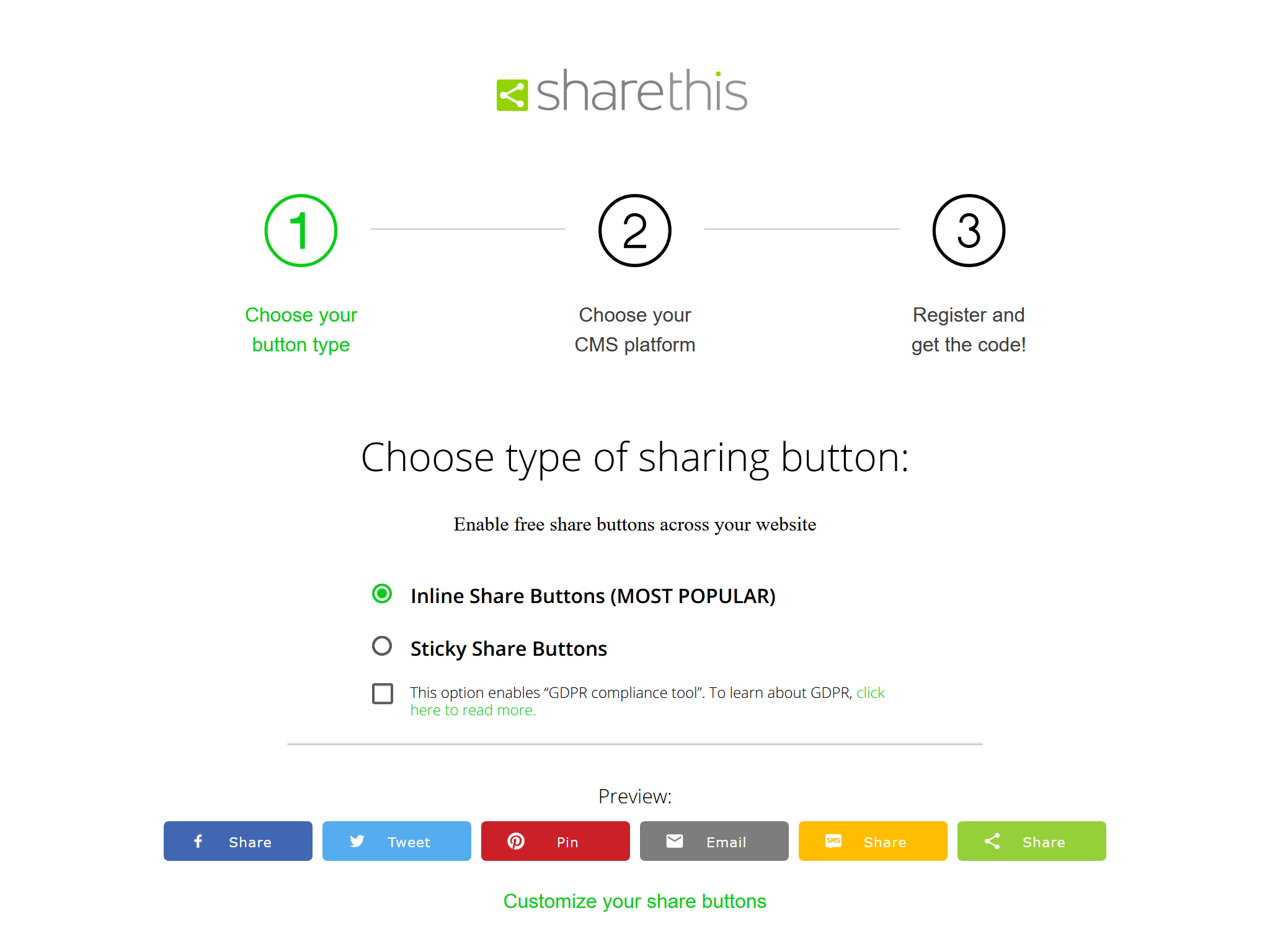
在“选择分享按钮类型”(Choose type of sharing button)页面选择你需要的按钮类型。 不要启用“GDPR规范工具”(GDPR compliance tool),否则可能会导致一些问题。 你也可以点击“自定义你的分享按钮”(Customize your share buttons)链接来进行按钮的进一步配置。 完成后点击“下一步”(Next)。
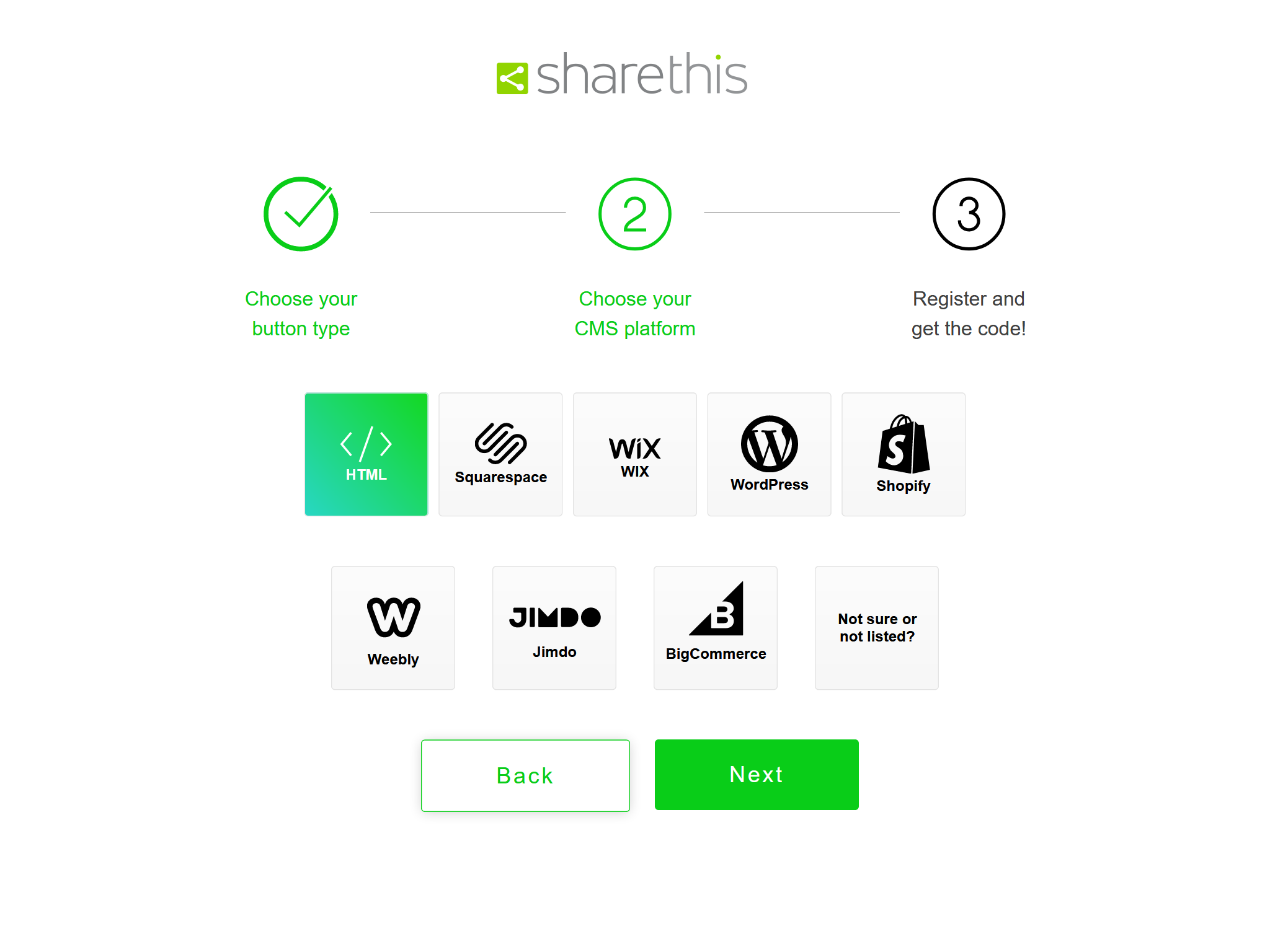
在“选择你的CMS平台”(Choose your CMS platform)页面选择“HTML”并点击“下一步”(Next)。
在“注册并获取代码”(Register and get the code!)页面输入邮箱和密码完成ShareThis的注册。
最后,从HTML代码段中复制
src中的URL地址到分享按钮配置中。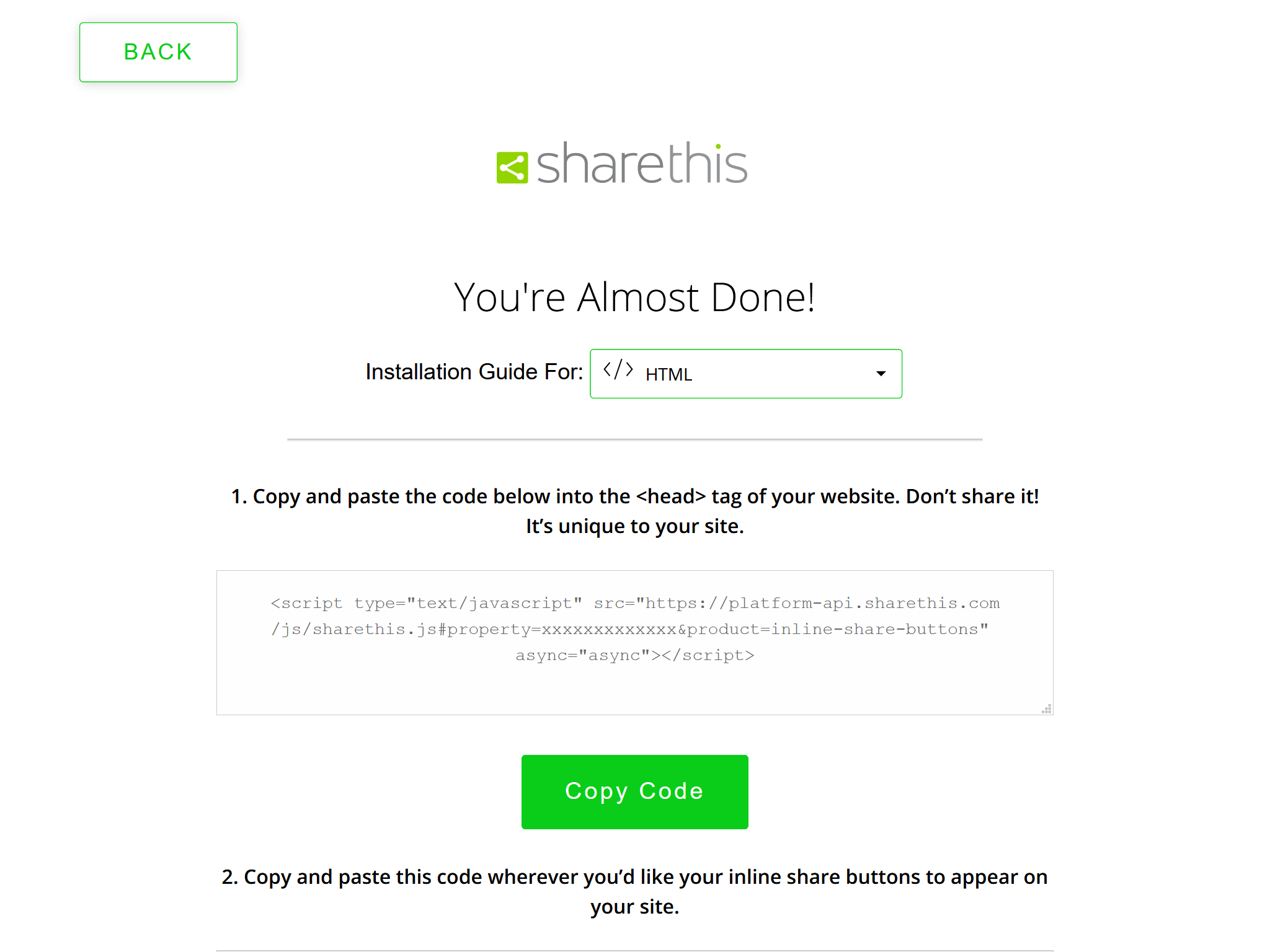
例如,下面的ShareThis代码:
ShareThis代码 1
<script type="text/javascript" src="https://platform-api.sharethis.com/js/sharethis.js#property=xxxxxxxxxxxxx&product=inline-share-buttons" async="async"></script>
对应下面的主题配置:
_config.icarus.yml 1
2
3share:
type: sharethis
install_url: https://platform-api.sharethis.com/js/sharethis.js#property=xxxxxxxxxxxxx&product=inline-share-buttons