Icarus User Guide - Donation Buttons
This article covers donation button configurations supported by Icarus.
If you need to display multiple donation buttons at once, add individual button configuration
to the donates array like the following:
1 | donates: |
Each button has required settings, such as url, qrcode, or business and currency_code.
If one of them is missing or empty, a red notice asking you to set it is shown in place of the button.
Afdian.net
Installation Guide
Register for Afdian.net and copy the URL to your personal page.
Add the following configuration to your theme configurations:
_config.icarus.yml 1
2
3
4
5donates:
-
type: afdian
# URL to your afdian.net personal page
url: https://afdian.net/a/your-username
Alipay
Installation Guide
Log into Alipay and export payment QR code.
Save the QR code picture to the asset directory of your Hexo website, or upload it to an image sharing service.
Add the following configuration to your theme configurations:
_config.icarus.yml 1
2
3
4
5donates:
-
type: alipay
# Path to your QR code image in your site, such as /images/alipay.png for source/images/alipay.png, or its full URL
qrcode: /path/to/alipay/qrcode.png
Buy me a Coffee
Installation Guide
Register for Buy me a Coffee and copy the URL to your personal page.
Add the following configuration to your theme configurations:
_config.icarus.yml 1
2
3
4
5donates:
-
type: buymeacoffee
# URL to your Buy me a Coffee personal page
url: https://www.buymeacoffee.com/your-username
Paypal
Installation Guide
Log into Paypal, click here to create a Paypal donation button.
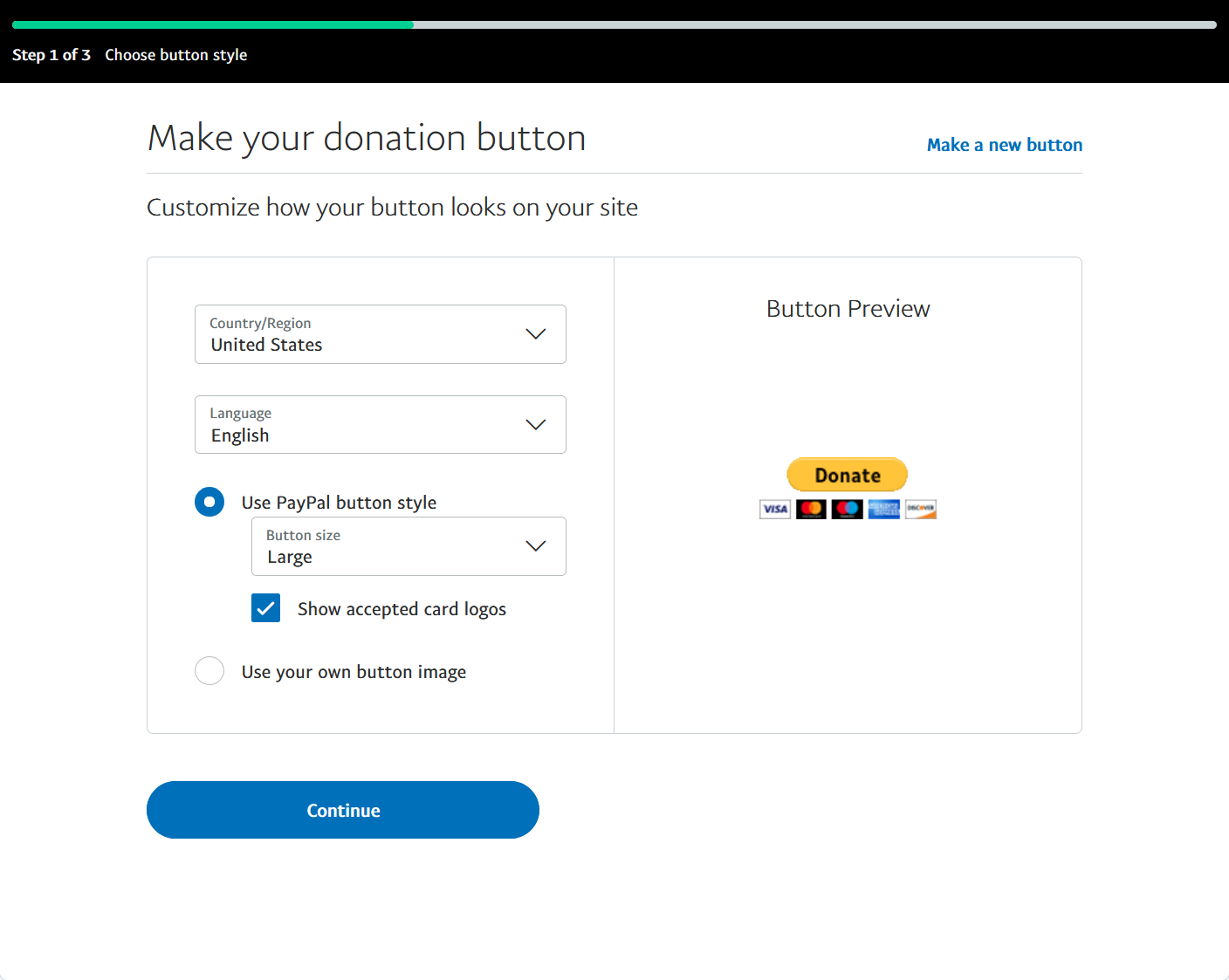
Select “Country/Region” and “Language” in the “Choose button style” page and click “Continue” to advance to the next page.
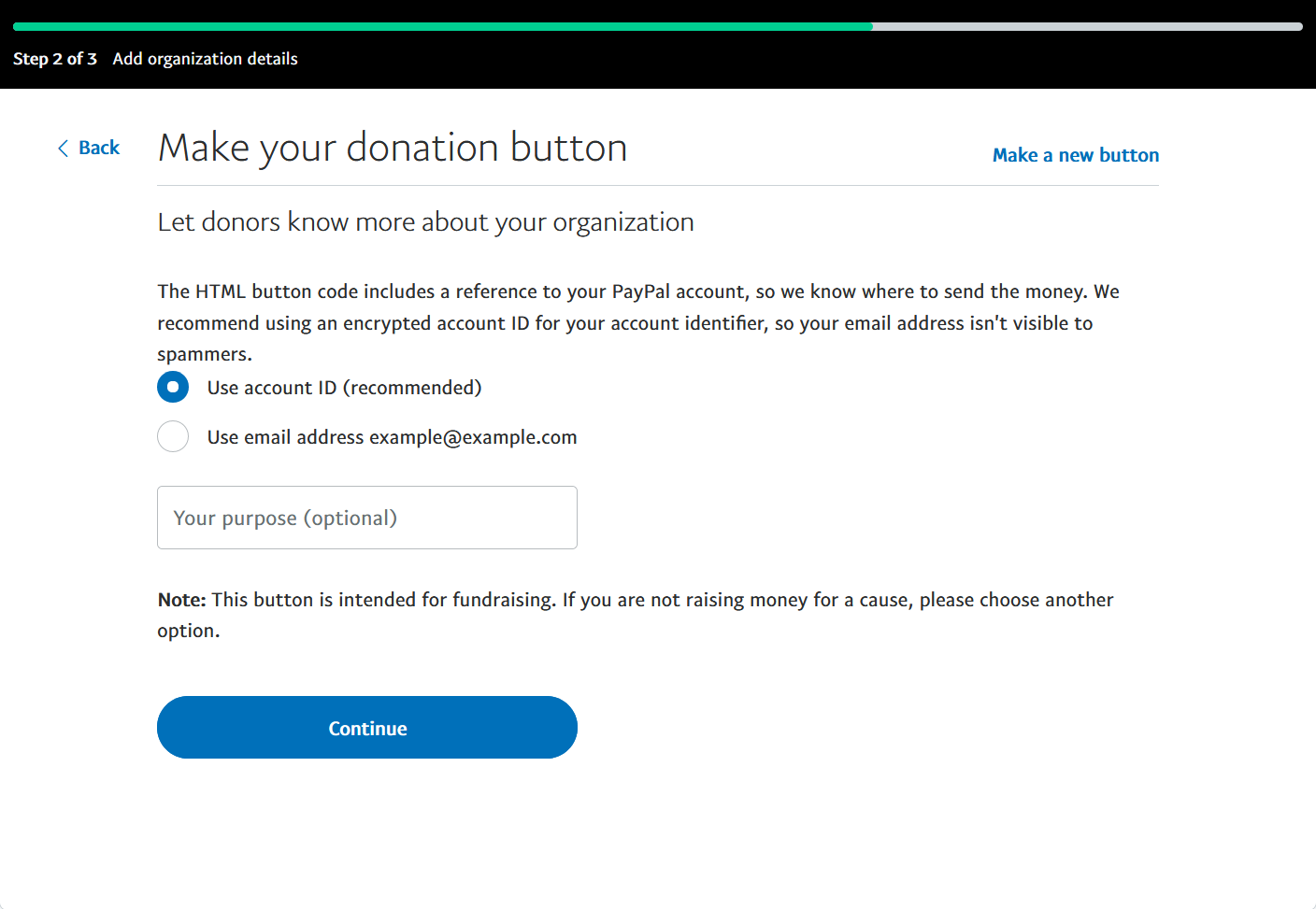
Select “Use account ID” or “Use email address” as the unique identifier of your account in the “Add organization details” page. Then, click “Continue” to go to the next page.
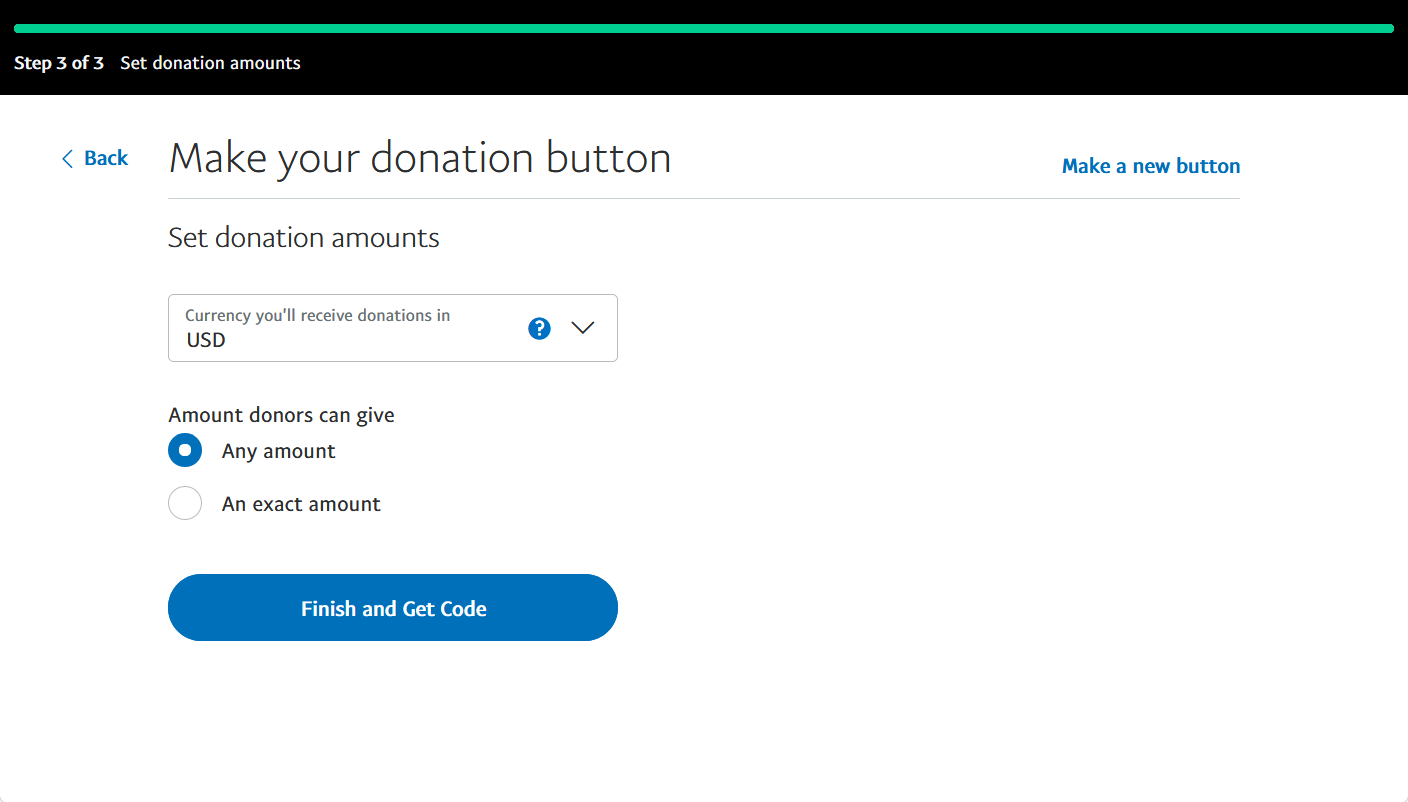
Choose the “Currency you’ll receive donations in” and set “Amount donors can give” to “Any amount” in the “Set donation amounts” page. We currently do not support the option of donating in “An exact amount”. Click “Finish and Get Code” to go to the next page.
Copy
businessandcurrency_codefrom the “Button HTML” on the page. Put them to thebusinessandcurrency_codesettings in your theme configurations.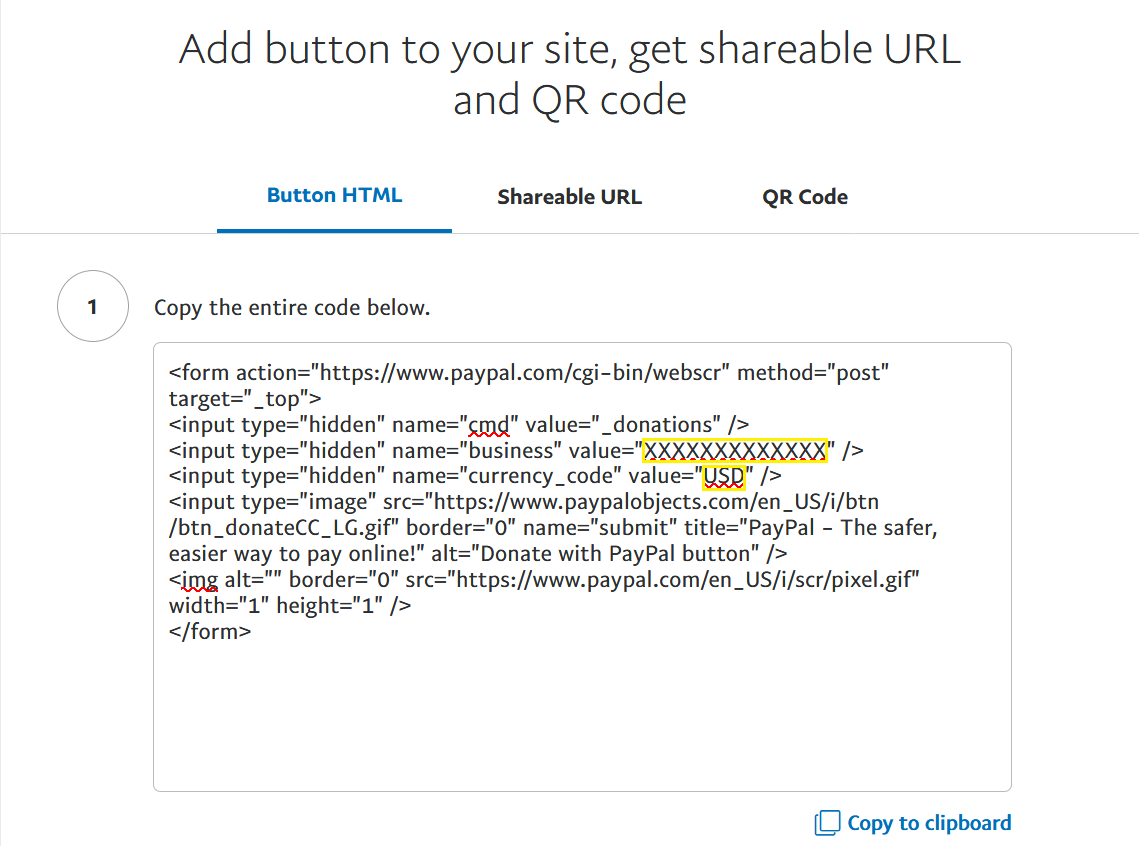
For example, the following Paypal donation button code:
Paypal HTML code 1
2
3
4
5
6<form action="https://www.paypal.com/cgi-bin/webscr" ...>
<input type="hidden" name="cmd" value="_donations" />
<input type="hidden" name="business" value="XXXXXXXXXXXXX" />
<input type="hidden" name="currency_code" value="USD" />
...
</form>maps to the following configuration:
_config.icarus.yml 1
2
3
4
5donates:
-
type: paypal
business: XXXXXXXXXXXXX
currency_code: USD
Patreon
Installation Guide
Register for Patreon and copy the URL to your personal page.
Add the following configuration to your theme configurations:
_config.icarus.yml 1
2
3
4
5donates:
-
type: patreon
# URL to your Patreon personal page
url: https://www.patreon.com/your-username
Installation Guide
Log into WeChat and export payment QR code.
Save the QR code picture to the asset directory of your Hexo website, or upload it to an image sharing service.
Add the following configuration to your theme configurations:
_config.icarus.yml 1
2
3
4
5donates:
-
type: wechat
# Path to your QR code image in your site, such as /images/wechat.png for source/images/wechat.png, or its full URL
qrcode: /path/to/wechat/qrcode.png
Icarus User Guide - Donation Buttons
https://ppoffice.github.io/hexo-theme-icarus/Plugins/Donation/icarus-user-guide-donation-buttons/